


Table of Contents
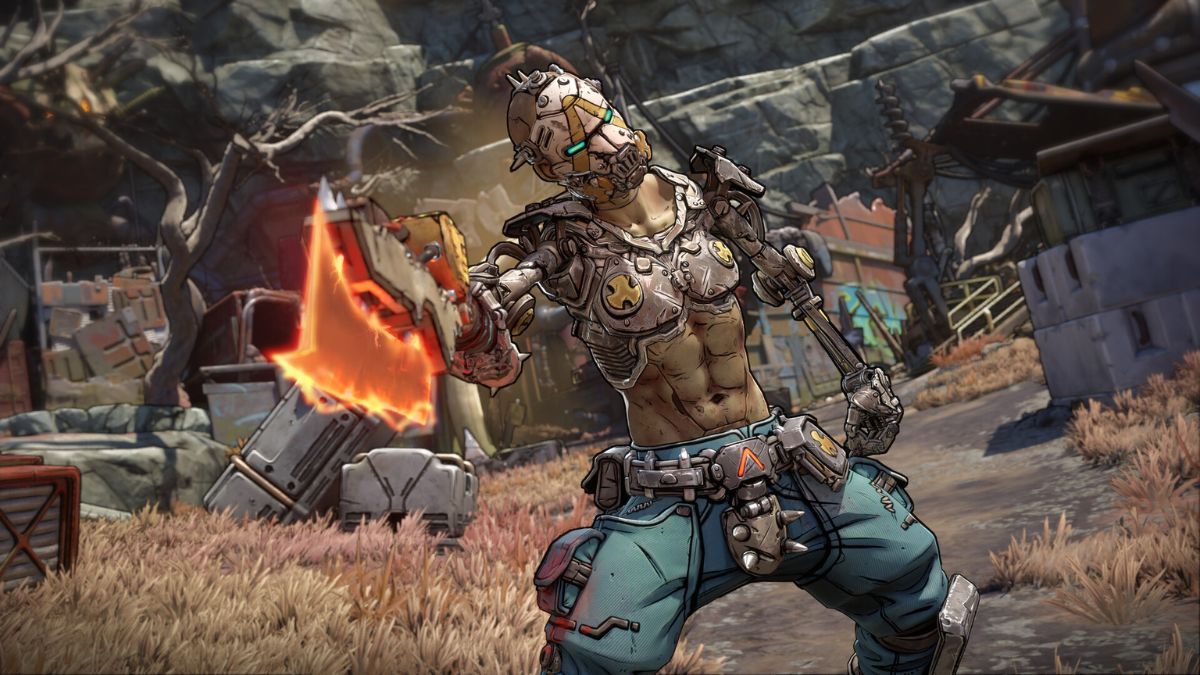
Borderlands 4 has arrived, and while the game brings exciting action, a huge world, and plenty of loot, many players are struggling to keep their frame rates stable. The game is visually demanding, and even powerful PCs can see performance drops during combat or when moving between areas.
However, while it sounds frustrating, there are a handful of methods that can help improve the FPS quickly, and we’ll go through all of them in this guide.c
Methods to increase FPS in Borderlands 4
Here are some methods that can help improve FPS in Borderlands 4.
Latest tech deals.
- AMD Ryzen™ 9 9900X 12-Core - was $499 now $331
- Sony INZONE M10S 27” - was $899 now $748
- Thermaltake LCGS View i1470S-170 - was $2,399 now $2,099
- Apple 2026 MacBook Air - was $1,999 now $1,891
- Bose QuietComfort Headphones - was $359 now $169
- LG 77-inch OLED C6 - was $2,499 now $1,999
- MSI Prestige 16 Flip - was $2,149 now $1,870
-
Hisense 85" U6 Pro Series-
Prices correct as of November 5th, 2026.
Method 1: Update Your GPU Drivers
Intel, AMD, and Nvidia release new drivers for their GPUs from time to time, which are meant to fix bugs, glitches, and make them compatible with the latest games. As Borderlands 4 is a new game, you’ll continue to face performance issues if you play on outdated drivers.
The best part is that updating the drivers is pretty easy. Simply go to your manufacturer’s website, search for your GPU in the drivers section, and download and install the latest version from there. Alternatively, you can download the dedicated app of your GPU, like the Nvidia App or AMD Radeon Software, and use it to update the drivers. Doing this alone can sometimes bring noticeable improvements in frame rates and stability.
Method 2: Disable demanding in-game settings
Borderlands 4 comes packed with high-end graphics features to provide a stunning visual experience. While these make the game look great, they also take a toll on FPS. If you want smoother performance, you’ll need to adjust a few settings.
- Ray Tracing (set to Off or Low)
- Shadows (set to Medium or Low)
- Texture Quality (set to Medium if you have less than 8GB VRAM)
- Post-Processing Effects (lower to reduce stutter)
Tweaking these settings can significantly improve frame rates, especially on mid-range GPUs.
Method 3: Upgrade your GPU
Sometimes, no amount of tweaking will help if your hardware simply isn’t powerful enough. Borderlands 4 lists the RTX 3080 or Radeon RX 6800 XT as the recommended graphics cards. If your GPU is below this level, you’ll likely struggle to maintain high FPS at max settings.
Upgrading to a modern GPU not only improves Borderlands 4’s performance but also prepares your system for other demanding games in the future. If you’re serious about playing at high frame rates with all the details turned up, a stronger GPU might be the only solution.
Written by
