



Table of Contents
Crimson Desert is finally out across all platforms, including PC. The game brings a massive open world filled with action, exploration, and detailed environments. You can spend hours just roaming around and taking in everything it offers. But right now, not everything is smooth. Many players are facing performance issues like crashing, stuttering, and random frame drops. These problems can ruin the experience, especially during fights or important story moments.
The developers are expected to release patches in the coming weeks to improve stability and overall performance. But if you don’t want to wait and solve the issues yourself, there are a few simple things you can try right now. These methods are easy to follow and can help you get a much smoother experience in Crimson Desert without needing any major changes.
Methods to fix crashing and stuttering in Crimson Desert
If the issues aren’t going away on their own, then here are a handful of methods that can help you solve them instantly.
Latest tech deals.
- AMD Ryzen™ 9 9900X 12-Core - was $499 now $328
- CORSAIR 4000D PC Case - was $124.99 now $75.99
- Hisense 65" Class E6SR - was $549 now $377.99
- Apple 2026 MacBook Air - was $1,999 now $1,799
- Skytech Gaming PC Desktop (9850X3d) - was $4,299 now $3,799
- Apple Magic Mouse - was $79 now $59
- MSI Prestige 16 Flip - was $2,149 now $1,899
- Kotin 9700X Gaming PC - was $2,399 now $2,199
Prices correct as of October 9th, 2026.
Verify game files
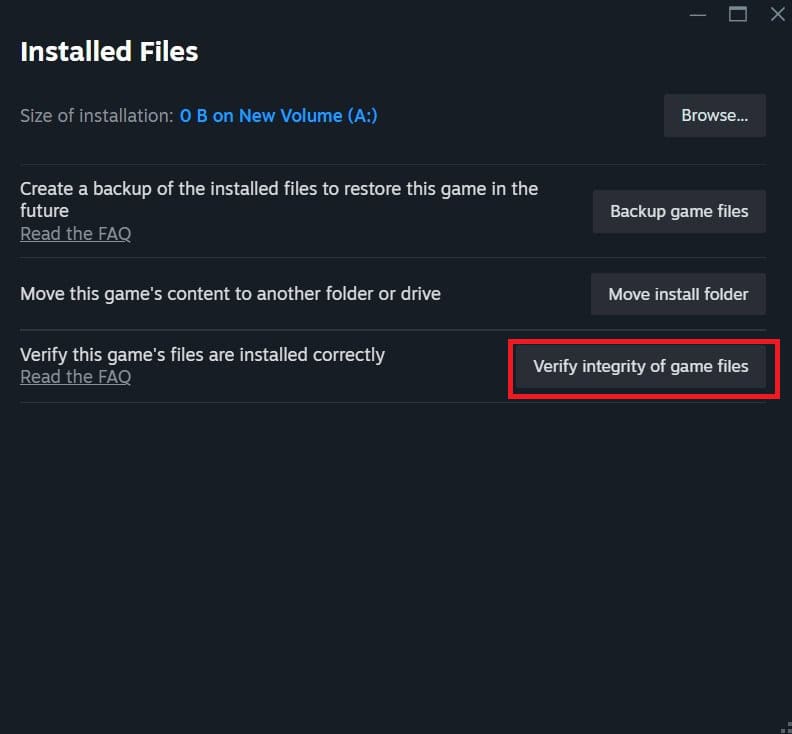
One of the most common reasons for crashes is missing or corrupted game files. Even a single broken file can stop the game from running properly. This usually happens during installation or after an update. The good thing is that Steam has a built-in option to fix this.
To verify your game files:
- Open Steam and go to your Library.
- Find Crimson Desert and right-click on it.
- Select Properties, then go to the Installed Files tab.
- Click on “Verify integrity of game files.”
- Steam will scan everything and automatically download any missing or broken files.
Update GPU drivers
Outdated GPU drivers can cause all sorts of problems. These include crashes, stuttering, low FPS, and even visual glitches. New games like Crimson Desert need the latest drivers to run properly, as GPU manufacturers release updates to support new titles.
To update the drivers, you can head over to the official website of your GPU’s manufacturer and download the latest version from there. Alternatively, you can use the dedicated application of your GPU, like the Nvidia App or AMD Radeon Software, for the same purpose. After updating, restart your PC before launching the game again. This ensures the new drivers are fully applied.
Close background applications
Running too many background applications can put extra load on your system. Apps like browsers, launchers, or even recording software use CPU and RAM in the background. This can lead to stuttering and low FPS because your system cannot properly assign resources to Crimson Desert.
So, before launching the game, open Task Manager by pressing Ctrl + Shift + Esc. Look at the list of running applications and close anything you don’t need. Make sure to focus on apps that are using high CPU or memory. This will free up system resources and help the game run smoother. It may seem like a small change, but it can reduce stuttering and improve overall performance, especially on mid-range PCs.

Power cycle your PC
Sometimes, small bugs and glitches build up in your system over time. These can affect how games run and even cause crashes. A simple power cycle can clear these issues and refresh your system.
To do this, completely shut down your PC. Once it’s off, unplug the power cable from the back. If you are using a laptop, remove the charger as well. Wait for about five minutes. This helps clear any leftover power and resets internal components. After that, plug everything back in and start your system.
Written by
