


Table of Contents
MW4 controller settings on PC natively support both Xbox and PlayStation controllers. Setting Aiming Input Device to Controller and reducing stick deadzones to the lowest without causing stick drift are very important settings. Also, keeping Target Aim Assist enabled and choosing Dynamic response curve are also vital settings.
🔥 More offers: see our Black Friday Modern Warfare 4 deals 2026 guide, updated daily, or browse all Black Friday deals.
Can you play Modern Warfare 4 with a controller on PC?
Using Steam, Battle.net, and Xbox, Modern Warfare 4 can be played on PC using a controller. USB and Bluetooth allow the Xbox Wireless Controller and PlayStation DualSense to be used. Players wondering how to use a controller on MW4 PC need to first connect their controller and set it as the Aiming Input Device in the game settings. This way, players can use the convenience of controller settings while playing on PC.
Black Friday is finally here. Below, you'll find some of the biggest and best deals from this year's most exciting sales event!
- Samsung 49" Odyssey - was $1,279 now $854
- HP HyperX OMEN 16 OLED - was $3,199 now $2,399
- Alienware 32 4K OLED Gaming Monitor - was $699 now $599
- Samsung 75-Inch Class Neo - was $1,197 now $997
- CyberPowerPC RTX 5060 Ti gaming PC - was $1,629 now $1,299
- LG 77-inch OLED C6 - was $2,499 now $1,999
- MSI Prestige 16 Flip - was $2,149 now $1,799
- Hisense 85-inch U6 Pro Series - was $1,999 now $947
Prices correct as of November 25th, 2026.
Progression goals in Modern Warfare 4 do not change when using a controller instead of a mouse. Modern Warfare 4 boosting for weapon levels, camos, and Soldier Rank lists the available services by goal regardless of which milestone you are working towards.
That said, the PC version has no option to change the crossplay. While console players can swap between Crossplay On, Off, or Console only, PC players do not have this option even when using a controller. This means that on PC, you can be in the same lobby as console players and PC players using controllers while you are using a mouse and keyboard, or vice versa. MW4 aim assist can be adjusted separately, but this setting does not change who you can match against.
How do you connect an Xbox or PS5 controller for MW4 on PC?
Step 1: Connect your controller
Plug your Xbox Wireless Controller or DualSense into your PC. Consider using a USB-C cable since it provides the most stable connection.
Step 2: Pair over Bluetooth
When using the wireless option, open Windows Settings, go to Bluetooth & devices, then click Add device and choose Bluetooth. It’s important to put your controller into pairing mode and then select it from the devices you are using. Additional instructions can be found in how to use a PS5 controller on PC.
Step 3: Check the game settings
Once the steps above are done, you have to launch MW4 and open the settings. Then go to the Controller tab and check if the button prompts match the ones on your controller.
If you are experiencing MW4 Steam Input issues, open the game’s Properties, go to the Controller menu, and click Disable Steam Input, then relaunch it.
It’s important to keep Steam’s setting for deadzone at 0 while adjusting your MW4 deadzone settings inside the game.
The game launched from Xbox on PC, and Battle.net handles the controller input directly, since they do not use Steam Input. There is confirmation about DualSense haptic feedback and adaptive triggers for PS5 directly from Activision, but it is not guaranteed that PC will have these features.
What are the best MW4 controller settings on PC?
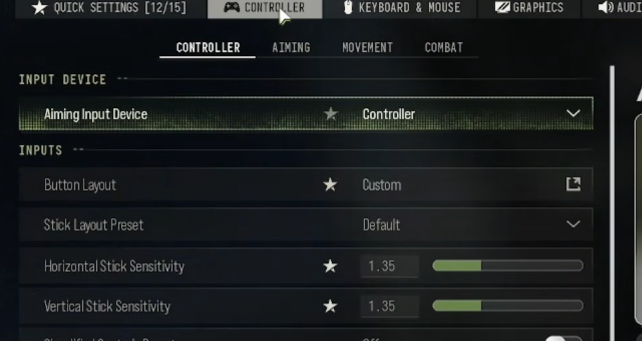
Usually, the best MW4 controller settings are just a starting point from which each player can calibrate some of them to match their aiming and movement preferences. Recommended settings can be found under Settings, then on the Controller tab, and then enter the following values. The aim response curve determines how quickly your camera movement accelerates as you push the right stick. Dynamic provides a more responsive feel during initial movements.
| Setting (Settings > Controller) | Value |
|---|---|
| Aiming Input Device | Controller |
| Button Layout | Tactical |
| Horizontal / Vertical Stick Sensitivity | 1.2 to 1.65, same on both axes |
| Controller Vibration | Off |
| Trigger Effect | Off |
| ADS Sensitivity Transition Timing | Instant |
| Aim Response Curve Type | Dynamic |
| Aim Response Curve Slope Scale | 1.00 (default) |
| Slide/Dive Behavior | Slide Only or Tap to Slide |
| Corner Slice / Mantle Assist | Off |
Lowering your sensitivity can help if you are overshooting enemies. Once that is done, you can start increasing it slightly until you find the perfect value that lets you turn around easily and smoothly. Also, it’s important to disable the vibration option since it can distract you and make your movement and aiming harder in some cases.
There is also the option to swap L1 or R1 with L2 or R2 as triggers. These buttons can be pressed faster and require less force, but getting used to that can take some time.
What deadzone should you use for MW4 on PC?
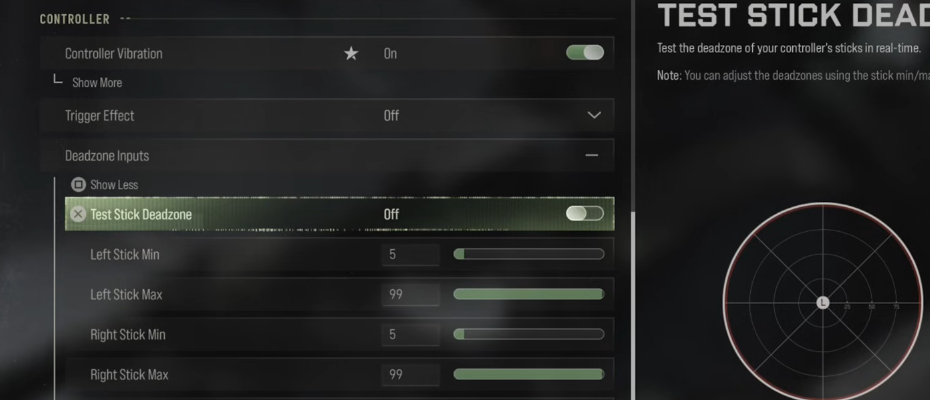
The setting that determines how much you have to move the stick before the game registers the input is called deadzone. Testing different settings with your controller is the best way to find MW4 best settings. Finding the perfect deadzone values can be done in two simple steps: First, you have to set both Left Stick Min and Right Stick Min to 0. After that, just keep increasing the values slightly until the unwanted movement disappears.
Setting Left Stick Max between 75 and 99, and Right Stick Max directly to 99 can be helpful. Lowering the maximum on the left stick makes your character reach full movement speed with pushing the stick less. Unless there are unwanted inputs that you do not make, keep both trigger deadzones at 0.
Some controllers might not have any stick drift or wear, because these issues vary between controllers. That’s why, when switching controllers, wired or Bluetooth, the test should be done again. A Modern Warfare 4 controller PC setup requires the values to be adjusted depending on the condition of the controller.
Which aim assist settings matter in MW4?
It’s important to keep your Target Aim Assist enabled in your MW4 controller settings PC setup. This Aim Assist helps you hit your target by slowing your crosshair as it passes over a target and provides little rotational tracking when moving your stick. It helps with staying on the target, but you still have to control your aim.
If ADS Aim Assist appears in your menu, just leave it at the default setting. If you see an additional Aim Assist type of setting, check the available options instead of following outdated guides from older CoD titles.
The Aim Assist was adjusted during the MW4 beta, so with updates, the behaviour might change. It’s important to check your settings after every major update. Gyro aiming uses the movement of the controller to adjust your crosshair. DualSense users should keep Motion Sensor disabled unless they prefer gyro aiming.
Controller or mouse on PC: what changes?
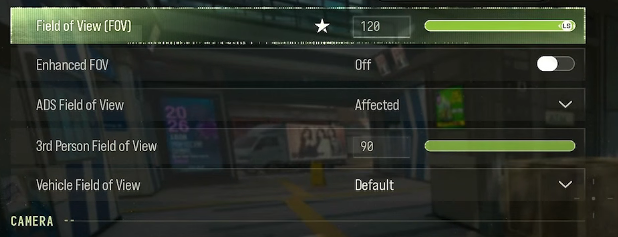
There are additional display and graphics settings for Modern Warfare 4 on PC regardless of whether players are using a controller or mouse and keyboard. Enhanced FOV widens your view near the edges without changing the center, according to Activision’s PC features rundown. There is also the sub-frame mouse polling setting that improves the precision of aiming when using a mouse.
Upscaling technologies like NVIDIA DLSS 4.5, AMD FSR Redstone, and Intel XeSS 3, as well as ultrawide monitor support, are part of the PC features of MW4. Performance can be improved using these settings depending on your hardware, even when using a controller.
The difference between mouse and keyboard and controller is the aim. More control and precision when aiming can be achieved with a mouse. Controllers, on the other hand, have aim assist that can help with tracking targets, as well as slightly better control when it comes to character movement. 90 FPS is the recommended specification set by Activision. High refresh monitors can make overall camera movement feel smoother and more responsive.
Controller players get aim assist as well as the exclusive to PC features when playing MW4 on computer. This makes adjusting the deadzone more important than changing hardware.
Written by
