



Table of Contents
Equipped with the latest generation QD-OLED panel with new sub-pixel design and an improved DarkArmor film coating on top, MSI has launched its MPG 341CQR X36. The gaming monitor boasts an ultrawide 3440 x 1440 resolution in a 21:9 aspect ratio, along with a fast 360Hz refresh rate – making it ideal for a slew of game genres and entertainment.
All this pairs nicely to produce a very desirable 34-inch display with an immersive 1800R curve. To see how well it delivers in practice, I put it through our usual monitor testing process, evaluating everything from the overall feel and stability to the performance of the panel itself. Here’s how it performed.


- Panel type: QD-OLED
- Resolution: 3440 x 1440
- Refresh rate: 360Hz
- Curvature: 1800R
- Panel size: 34-inch
- I/O ports: 2x HDMI 2.1, 1x DisplayPort 2.1a, 1x Type-C, 2x USB 5Gbps Type-A, 1x USB 5Gbps Type-B, 1x Headphone-out
Overall, the MSI MPG 341CQR X36 is a fantastic display. Its ultrawide 1800R curvature helps create an immersive experience, offering a large amount of screen space while maintaining strong visual quality. With a 3440 × 1440 resolution and a 360Hz refresh rate, it delivers a combination of smooth performance and sharp visuals that result in an excellent overall viewing experience.
Of course, that level of performance comes at a price. If you can afford it, however, it stands out as an exceptional all-in-one monitor option.
- Three-year warranty that covers burn-in
- A load of burn-in protections in the settings of the monitor
- Great feeling usage with 360Hz and G-Sync
- Amazing-looking screen of colors and looks
- Excellent connectivity, including KVM and PD charging
- Little to no cable management
- Corner brightness of screen vary wildly
- Expensive to purchase
Pricing and availability
Our particular model is harder to find in the US; the X36 (360 Hz) model is more readily available in the UK. It is available for £999, while the closest available model in the US is the 240Hz model, priced at $799.
Latest tech deals.
- AMD Ryzen™ 9 9900X 12-Core - was $499 now $328
- CORSAIR 4000D PC Case - was $124.99 now $75.99
- Hisense 65" Class E6SR - was $549 now $377.99
- Apple 2026 MacBook Air - was $1,999 now $1,799
- Skytech Gaming PC Desktop (9850X3d) - was $4,299 now $3,799
- Apple Magic Mouse - was $79 now $59
- MSI Prestige 16 Flip - was $2,149 now $1,899
- Kotin 9700X Gaming PC - was $2,399 now $2,199
Prices correct as of October 9th, 2026.
Similarly, the ASUS ROG Strix XG34WCDG is a 1440p ultrawide monitor with a 175 Hz refresh rate, priced at $999 – while the Alienware 240 Hz AW3425DW is also $799.99. Two alternative choices that cost around the same price.
Design and specifications
The MSI monitor utilizes a Samsung QD-OLED panel with a resolution of 3440 x 1440. So at its 34-inch size, it does have a total of 109 pixels per inch on the display. Utilizing a 5th-generation QD-OLED panel, it moves to a stripe layout for improving clarity of the text, and so does the DarkArmor film on top, which absorbs more ambient light and further heightens the contrast of the monitor.
MSI MPG 341CQR X36 box, Image by PC Guide

MSI MPG 341CQR X36 box edge, Image by PC Guide

MSI MPG 341CQR X36 box contents, Image by PC Guide

MSI MPG 341CQR X36 with box, Image by PC Guide

MSI MPG 341CQR X36 stand and base, Image by PC Guide

MSI MPG 341CQR X36 stand bottom, Image by PC Guide

MSI MPG 341CQR X36 stand, Image by PC Guide

MSI MPG 341CQR X36 rear minus stand, Image by PC Guide

MSI MPG 341CQR X36 front on, Image by PC Guide

MSI MPG 341CQR X36 side, Image by PC Guide

MSI MPG 341CQR X36 rear, Image by PC Guide

MSI MPG 341CQR X36 rear right, Image by PC Guide
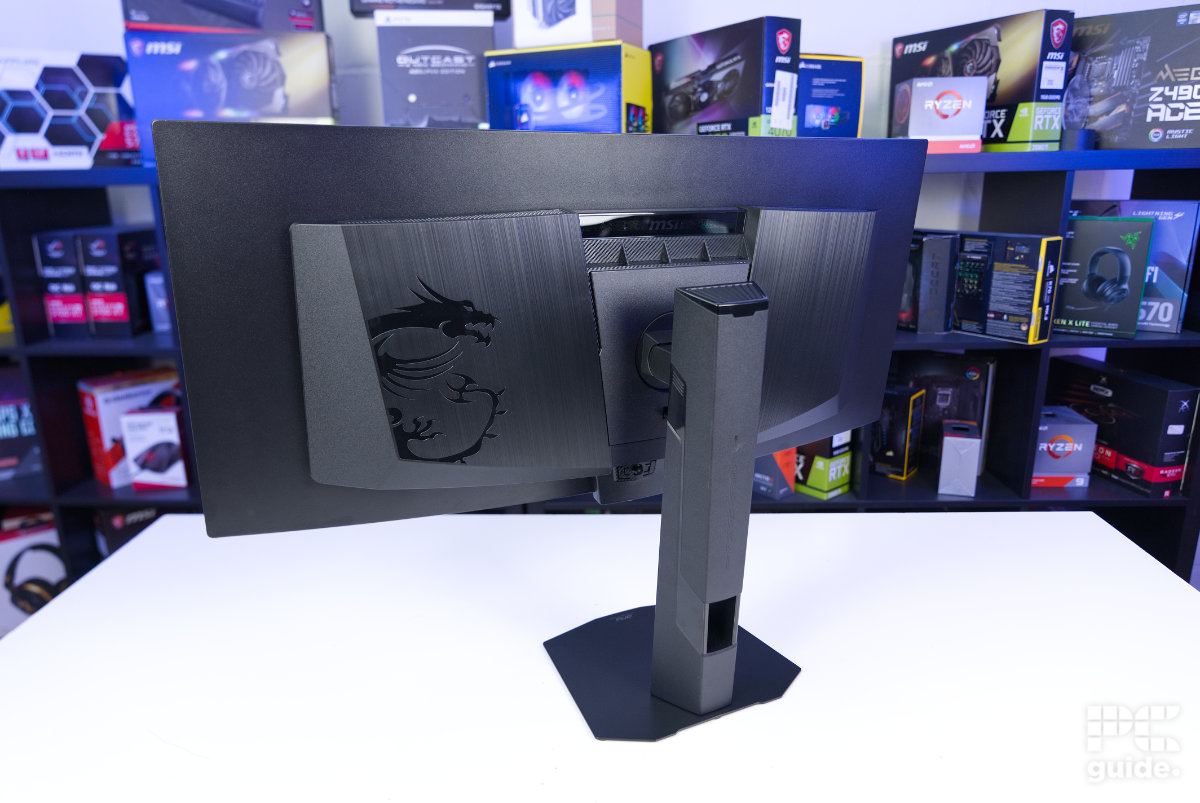
MSI MPG 341CQR X36 rear left, Image by PC Guide
Available in black, the monitor comes in a well-designed box with plenty of marketing materials on the exterior. Opening it, the calibration sheet is neatly placed on the edge, while the first layer inside holds all the accessories and extra parts. Beneath this layer, the display itself sits protected by a cover and nestled securely in a cardboard insert.
Assembly is straightforward, thanks to a convenient slit in the back of the monitor cover that lets you set up the monitor without moving it around. To start, attach the base of the display to the main body of the stand by using a single screw, then slot the stand into the hole at the back of the monitor. It clicks into place with no additional mounting required.
Setting it on your desk is relatively simple. The redesigned single-plate stand takes up less space, making it easier to arrange the monitor. Despite the compact stand, the curved ultrawide panel naturally requires a generous footprint, measuring 812 × 228 × 543 mm (32 × 8.9 × 21.3 inches).
The 341CQR X36 features a 1800R curvature for its 21:9 aspect ratio. Adjustment options are somewhat limited: tilt ranges from -5° to 15°, swivel from -30° to 30°, pivot from -10° to 10°, and height can be adjusted from 0 to 110 mm.
Design-wise, it’s a substantial monitor, as expected. Large vents at the back help dissipate heat, while the center panel clearly indicates it’s an OLED. An RGB MSI logo sits at the back, controllable via MSI Mystic.
The back also balances sharp, edgy lines with curved shapes. A brushed metal finish spans the panel, featuring a large MSI dragon on the left, while angled edges extend from the top and sides, converging toward the central stand for a cohesive, aggressive look.

MSI MPG 341CQR X36 back logo, Image by PC Guide

MSI MPG 341CQR X36 RGB logo, Image by PC Guide

MSI MPG 341CQR X36 OLED rear, Image by PC Guide

MSI MPG 341CQR X36 stand writing, Image by PC Guide

MSI MPG 341CQR X36 stand passthrough, Image by PC Guide

MSI MPG 341CQR X36 monitor stand connection, Image by PC Guide

MSI MPG 341CQR X36 vent top, Image by PC Guide

MSI MPG 341CQR X36 logo and sensor, Image by PC Guide

MSI MPG 341CQR X36 joystick, Image by PC Guide

MSI MPG 341CQR X36 power port, Image by PC Guide

MSI MPG 341CQR X36 ports, Image by PC Guide
Underneath the monitor, all the connectors are neatly arranged. On one side sits the power port, while the opposite side houses the various I/O ports. The extended back design provides space for everything and helps with cable management, aided by a prominent central bulge that extends downward.
Within the chin area, you’ll find the proximity and daylight sensors, along with the power indicator light. The light hangs slightly and is neither bright nor prominent. Behind this section sits the joystick for menu navigation, flanked by two buttons – the G key and the power button – for additional control.
OSD, features, settings, and warranty
The monitor offers a rather comprehensive on-screen display with a variety of “AI” controls, some of which are particularly useful for OLED maintenance. The first option is an AI crosshair, which comes in multiple designs and sizes. It even changes color based on the on-screen background, ensuring it remains visible without being distracting.
Next is the AI Vision feature, which targets brighter and darker areas to enhance detail in shadowed or highlighted portions of the screen. The monitor also includes several care modes, allowing you to use the AI care sensor either in system mode (Windows 11 24H2+) or monitor mode (universal) to manage the display’s behavior.
Paired with the brightness and light sensors, the monitor can automatically adjust brightness based on ambient light, dim when you look away, or turn off entirely if left unattended. These features help prevent OLED burn-in and extend the panel’s lifespan.

MSI MPG 341CQR X36 OSD general, Image by PC Guide

MSI MPG 341CQR X36 OSD OLED care, Image by PC Guide

MSI MPG 341CQR X36 OSD input source, Image by PC Guide

MSI MPG 341CQR X36 OSD mode, Image by PC Guide

MSI MPG 341CQR X36 OSD gaming features, Image by PC Guide

MSI MPG 341CQR X36 OSD AI care, Image by PC Guide

MSI MPG 341CQR X36 OSD AI crosshair menu, Image by PC Guide

MSI MPG 341CQR X36 OSD AI crosshair, Image by PC Guide
Next up are the gaming-focused features. The monitor lets you adjust KVM settings and configure various adaptive sync options. You can also set a timer and monitor the refresh rate to stay informed while running any application, and you have the option to force a different aspect ratio if you prefer something other than the default 21:9.
The monitor includes a range of picture mode presets, each of which can be fine-tuned. Eco and User modes are particularly versatile for customization. Input source options are also available, including PD charging and auto-scan functionality.
For multitasking, picture-in-picture (PiP) and picture-by-picture (PbP) modes let you display multiple sources on a single screen. Additional MSI OLED care features allow you to adjust pixel shift speed and other settings to help protect the panel.
To provide extra peace of mind, MSI offers a three-year warranty on the monitor, which even covers panel burn-in. This means that if any of the care features fail to prevent issues, the panel can still be replaced.
Screen testing and performance
After setup and inspection, I performed a variety of colorimeter tests on the panel. Utilizing DisplayCAL software with a Calibrate Display Plus HL device.
Color gamut
First up is the color gamut of the display and how well it covers those. In the case of the MSI monitor, the results varied per mode, as you might expect, but it certainly could get to the right level with a calibration. By default, the different color profiles do best in their own scene, so DCI-P3 gets 98.2%, Adobe RGB achieves 95.4%, and sRGB in 99.3%.

MSI MPG 341CQR X36 DCI-P3 gamut coverage, Image by PC Guide

MSI MPG 341CQR X36 sRGB gamut coverage, Image by PC Guide

MSI MPG 341CQR X36 Adobe RGB gamut coverage, Image by PC Guide

With our own calibration process, I adjust the color levels in the custom user mode to get a color profile to best match the widest range of colors. I did manage to get a profile to get 99.7% sRGB, 94.6% Adobe RGB, and 98.3% DCI-P3, as the volume for these jumps above 100%. So the monitor does have a wide range of colors to utilize and is even suitable for most work that needs accuracy.
Color accuracy, contrast, gamma, and brightness
Also, testing the various modes, I checked how they compared to the ideal levels. Written out in the table below, it shows how they measured up.
| Monitor preset | White point | Black point | Contrast | Average deltaE*00 | Max deltaE*00 | Gamma | Recorded brightness |
|---|---|---|---|---|---|---|---|
| IDEAL | 6500K | 0 cd/m² | infinity:1 | 0 | 0 | 2.2 | 120 cd/m² |
| Eco | 6435K | 0 cd/m² | Infinity:1 | 3.19 | 7.72 | 2.19 | 120.4 cd/m² |
| Premium color | 6480K | 0 cd/m² | Infinity:1 | 6.28 | 16.13 | 2.19 | 120.7 cd/m² |
| sRGB | 6454K | 0 cd/m² | Infinity:1 | 0.65 | 2.19 | 2.22 | 120.8 cd/m² |
| Adobe RGB | 6454K | 0 cd/m² | Infinity:1 | 3.31 | 7.72 | 2.2 | 119.3 cd/m² |
| DP3 | 6466K | 0 cd/m² | Infinity:1 | 2.5 | 5.12 | 2.2 | 120.9 cd/m² |
| User | 6517K | 0 cd/m² | Infinity:1 | 0.51 | 2.13 | 2.22 | 117.4 cd/m² |
As you can see, the monitor does tend to stay on the colder side of the white point, not by much, likely thanks to the fact that you can set the warmth in the display settings. Then the black point and contrast are at the ideal level due to it being an OLED panel.
The gamma and brightness levels are generally close to their target. With brightness set around 120 cd/m², gamma sits near 2.2, which can also be adjusted through the on-screen menu.
Color accuracy varies depending on the selected mode. In Premium Color mode, colors are more vibrant but less accurate, exceeding their true values. In contrast, sRGB and a user-calibrated profile bring accuracy to very acceptable levels, with an average Delta E below 1 and a maximum just above 2.
Brightness in standard mode is modest, peaking at around 300 nits – our unit measured 284 nits – and dropping to a minimum of 33 nits. However, HDR can significantly boost output, adding up to an extra 1,000 nits, with a spec maximum of 1,300 nits.
Panel uniformity
Another test I put the monitor through is checking the uniformity of the panel. Using the colorimeter and a nine-by-five grid, I could compare the various squares in comparison to the middle. That way, I could see how the brightness and color varied across it.

In the case of our panel, the center was relatively uniform, but the outer edge had great variation away from the middle. The top, bottom, and sides were still nominal, but the max deviation of brightness started getting high just below 10%, and it received an orange rating.
The corners, on the other hand, returned a red result – potentially noticeable variance between the segment and the centre. There, the brightness jumped to over 20 cd/m² variance from the center at a max and by around 10% on average, so the light does get dimmer around the edges.
Viewing angles
Once again, as an OLED, the viewing angles on it are perfect, where it can reach 178°. So you can see it at any point; in fact, the curvature is more what gets in the way of seeing it from the side, but looking at the screen is possible with all the clarity staying there.

Gaming performance
Next, I tested the monitor with several games to get a sense of how it performs in real-world use. The MSI monitor proved exceptional in this regard. With its 360Hz refresh rate and support for both G-Sync and FreeSync, gaming felt incredibly smooth and responsive.
For fast-paced FPS titles, the monitor delivers snappy responsiveness while maintaining clear motion, making it easy to track action across the screen. The ultrawide aspect ratio adds to the immersion, filling your peripheral vision and creating a more engaging experience overall.
Response time
I also tested the response time of the monitor. Using a device to measure that, it does, in fact, have a fast one. Although I didn’t quite measure the 0.3ms it’s rated for, the average perceived time for the monitor came to around 0.6ms, so very close and certainly not perceivable as being slower than expected.
| Mode | Average error | Average initial time | Average complete time | Average perceived time |
|---|---|---|---|---|
| VSync | 1.77 | 0.59 | 2.61 | 0.59 |
| VSync off | 1.67 | 0.62 | 2.73 | 0.62 |

MSI MPG 341CQR X36 set up with keyboard and mouse, Image by PC Guide
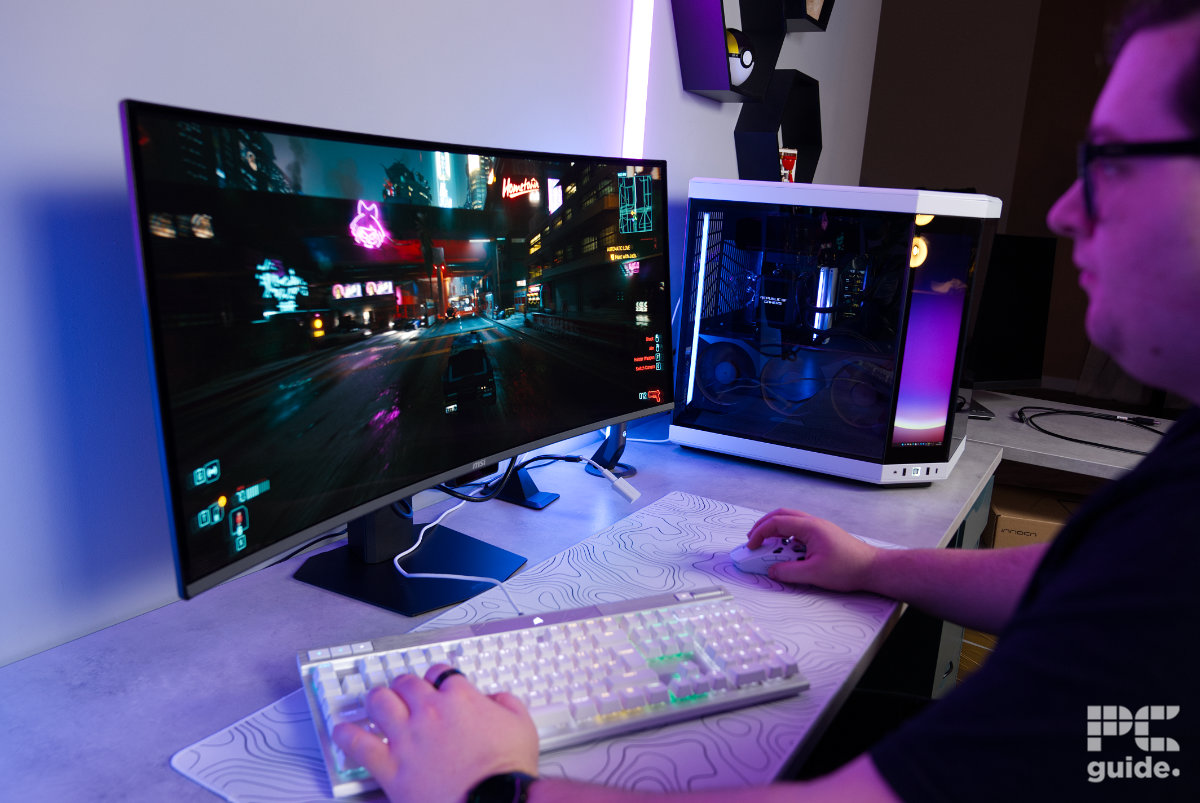
MSI MPG 341CQR X36 gaming Cyberpunk (3), Image by PC Guide

MSI MPG 341CQR X36 gaming CS2 (3), Image by PC Guide

MSI MPG 341CQR X36 gaming CS2 (2), Image by PC Guide

MSI MPG 341CQR X36 gaming CS2, Image by PC Guide

MSI MPG 341CQR X36 gaming Cyberpunk (2), Image by PC Guide

MSI MPG 341CQR X36 gaming Cyberpunk, Image by PC Guide
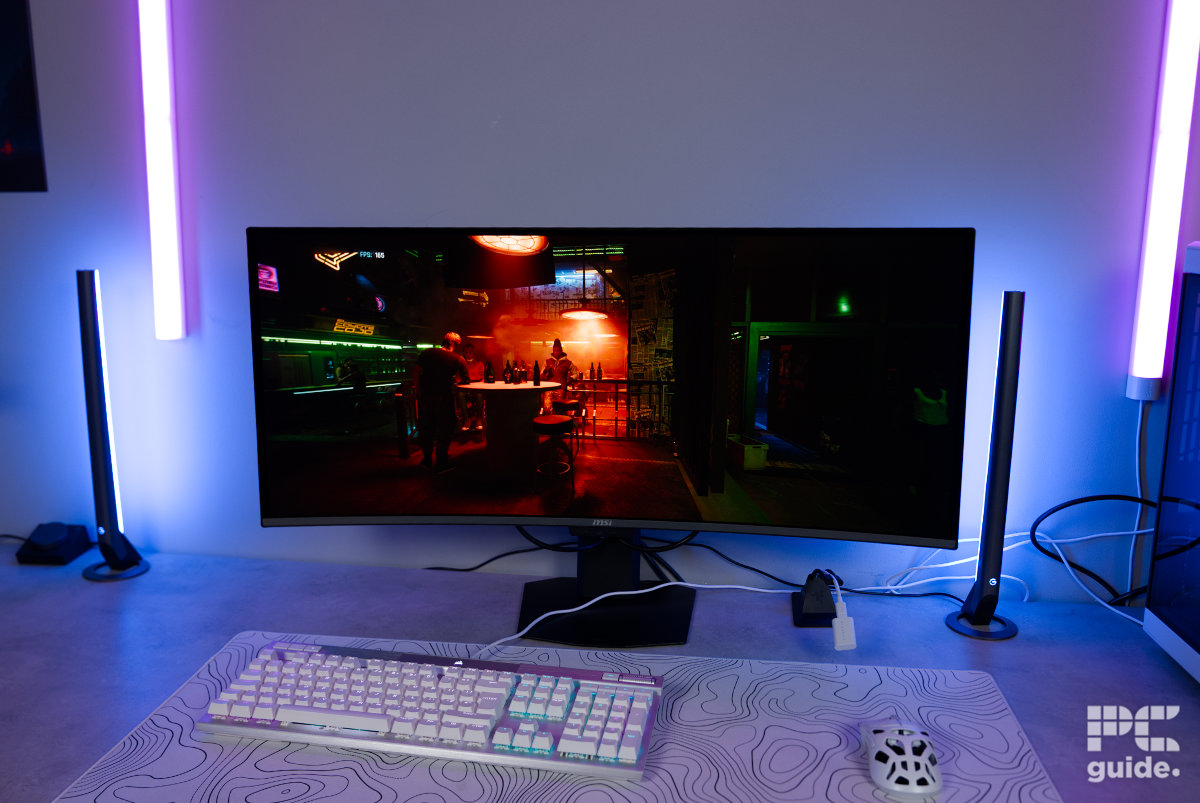
MSI MPG 341CQR X36 desk setup Cyberpunk, Image by PC Guide

MSI MPG 341CQR X36 set up on desk , Image by PC Guide
General performance and productivity
The monitor’s size and color accuracy also make it excellent for general productivity. Large spreadsheets with many columns fit comfortably on a single screen, and video editing benefits from having more of the timeline visible at once. This makes the display a versatile and highly practical option, eliminating the need for a multi-monitor setup with distracting bezels and gaps.
- Panel type: QD-OLED
- Resolution: 3440 x 1440
- Refresh rate: 360Hz
- Curvature: 1800R
- Panel size: 34-inch
- I/O ports: 2x HDMI 2.1, 1x DisplayPort 2.1a, 1x Type-C, 2x USB 5Gbps Type-A, 1x USB 5Gbps Type-B, 1x Headphone-out
Conclusion
The MSI MPG 341CQR X36 is a premium investment, reflecting its higher price point, but it delivers plenty of screen space and versatility in return. With next-generation OLED pixels, a sharp 1440p resolution, and a 360Hz refresh rate in an ultrawide format, it ticks all the right boxes. Combined with responsive performance and vibrant, accurate colors, the monitor offers an excellent overall experience and remains a compelling choice for both gaming and productivity.
Written by
