


Table of Contents
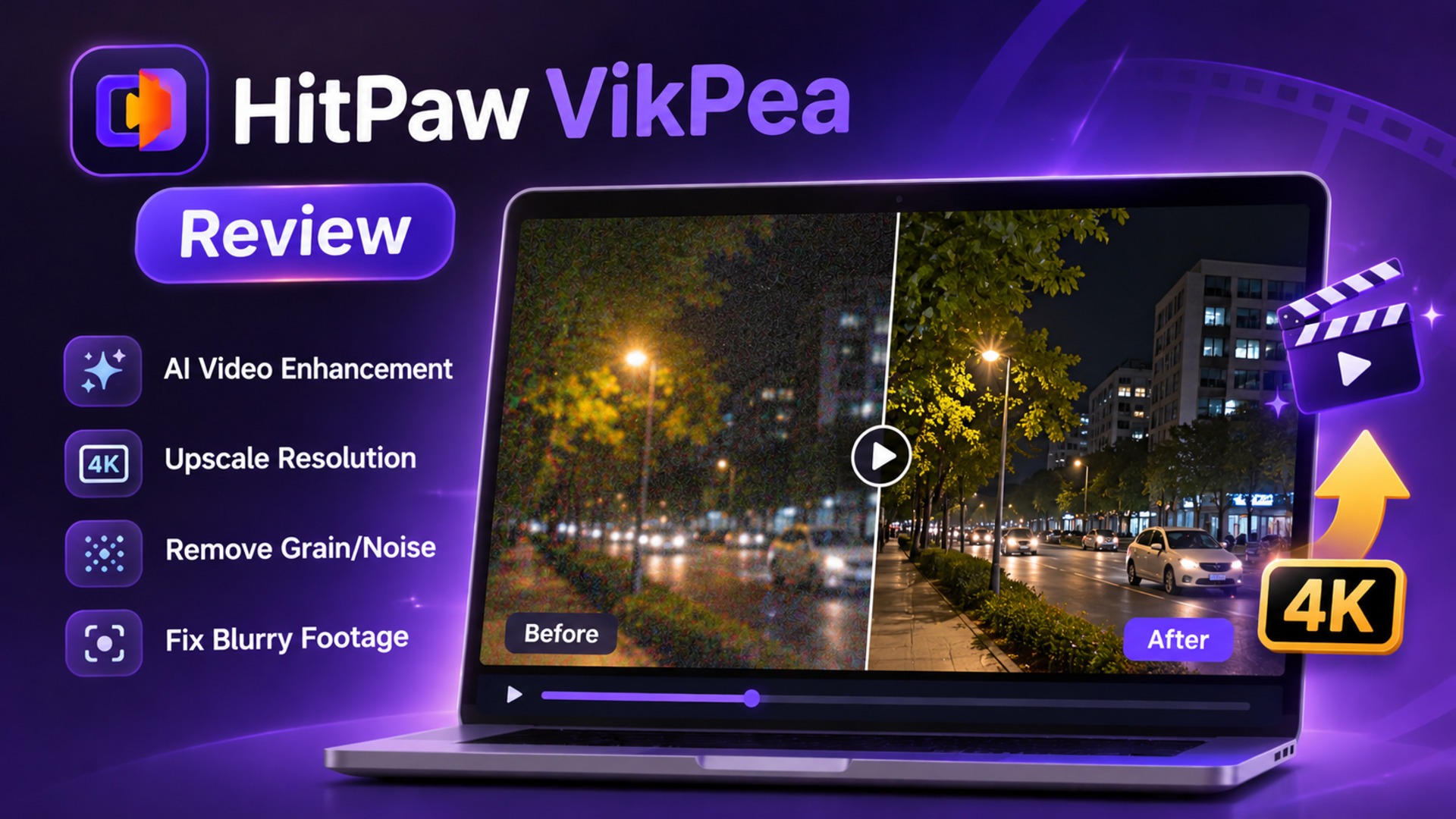
Poor lighting, blurry footage, low resolution, and distracting grain can make memorable family recordings or otherwise great videos difficult to watch. AI Video enhancer can be used to provide an effective solution to these challenges without hours of tweaking the settings of professional video editing software. This HitPaw VikPea review discusses its main features, practical evidence of video improvement, usability, its advantages and disadvantages, its cost, and alternatives to help you determine whether it is worth using or not.
What Is HitPaw VikPea?
HitPaw VikPea is a Windows and macOS-based video enhancer and restorer, powered by AI. It assists users in improving blurry, grainy or low-resolution videos without high-end editing skills. The software uses AI models to improve video resolution, reduce visual noise, and restore details in old recordings. It provides a viable alternative to enhance the quality of footage that appears subpar on contemporary displays.
VikPea offers useful tools for YouTube creators working with low-quality clips, video editors improving imperfect footage, and individuals restoring old family recordings. Its AI-powered tools reduce the need for manual adjustments, making video enhancement easier for beginners while offering useful restoration features for experienced creators.
Black Friday is finally here. Below, you'll find some of the biggest and best deals from this year's most exciting sales event!
- Samsung 49" Odyssey - was $1,268.29 now $854.98
- HP HyperX OMEN 16 OLED - was $3,199 now $2,399
- Acer Predator X32 X 4K QD-OLED 240Hz - was $999.99 now $649.99
- Samsung 9100 PRO 2TB SSD - was $679.97 now $349.99
- CyberPowerPC RTX 5060 Ti gaming PC - was $1,629.99 now $1,299.99
- LG 77-inch OLED C6 - was $2,499.99 now $1,899.99
- MSI Prestige 16 Flip - was $2,149 now $1,789
- Hisense 85-inch U6 Pro Series - was $1,999.99 now $947.99
Prices correct as of November 27th, 2026 (Black Friday evening).
Key Features of HitPaw VikPea
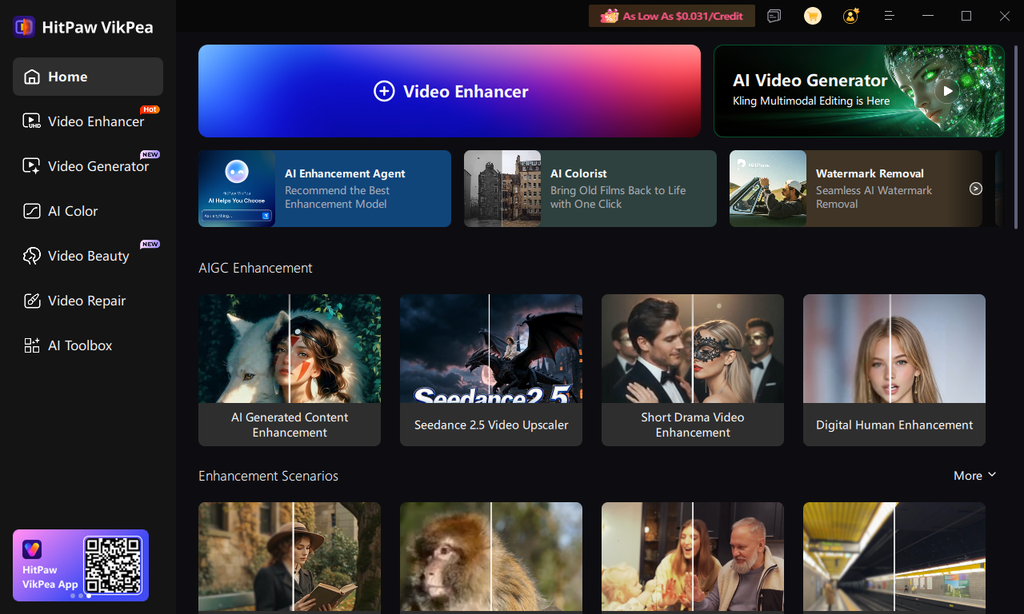
HitPaw VikPea has a variety of AI-powered video quality tools. Instead of using complex manual optimization, users are able to choose features depending on the quality of their footage.
AI Video Upscaling and Restoration
Old videos and downloads are usually pixelated when they are viewed on big screens. The AI video upscaling by VikPea enhances the video resolution and tries to re-create lost visual information. This can convert low-resolution video into something more appropriate to watch on current displays.
AI Video Denoising and Low-Light Enhancement
Videos captured in bad lighting conditions, like at night or in dimly lit rooms, can have a grainy or speckled appearance. AI denoising can help get rid of distractions and enhance important details.
VikPea can also enhance videos captured in low-light conditions, like indoors, or other situations where the main subject of the video is filmed in the dark. This can make subjects appear in otherwise unusable footage. VikPea aims to improve video quality while preserving natural textures in areas such as skin and clothing.
AI Animation and Portrait Enhancement
Animations and illustrated scenes need special treatment during processing. VikPea offers options to enhance animations and anime to sharpen character edges and remove compression artifacts. This can improve the overall visual clarity of animated footage.
Additional AI Video Tools
VikPea offers tools for adjusting colors, correcting motion, and creating videos beyond basic enhancements. Its array of tools helps users perform different video editing tasks within the app.
- AI Video Generation: Uses text or images, with supported AI models, to create videos.
- Video Stabilization: Eliminates unwanted camera shake and makes shaky videos, like handheld or action videos, more watchable.
- AI Frame Interpolation: Improves the frame rate and creates smoother motion in low frame rate (i.e. slow motion) videos.
- SDR-to-HDR Conversion: Increases the contrast range in standard videos and creates deeper shadows and highlights.
- Black-and-White Video Colorization: Uses AI to colorize old, black-and-white videos.
- Video Background Removal: Separates subjects from their backgrounds and allows users to replace the backgrounds.
VikPea Review: Real-World Video Enhancement Tests
Improving video quality means making the footage more realistic and natural. The enhancement should not artificially introduce sharper edges and create artificial details. There are many challenges in creating a realistic video. To test HitPaw VikPea in the real world, here are the challenges the tool can help address.
Test 1: How to Enhance Low-Resolution Videos
Test Conditions: This test involved a 15-second video of the street with an original resolution of 480p. The video contains pixelated road signs, blurry building edges, and unclear background details. The General Restoration Model of VikPea was chosen with an output resolution of 1080p.
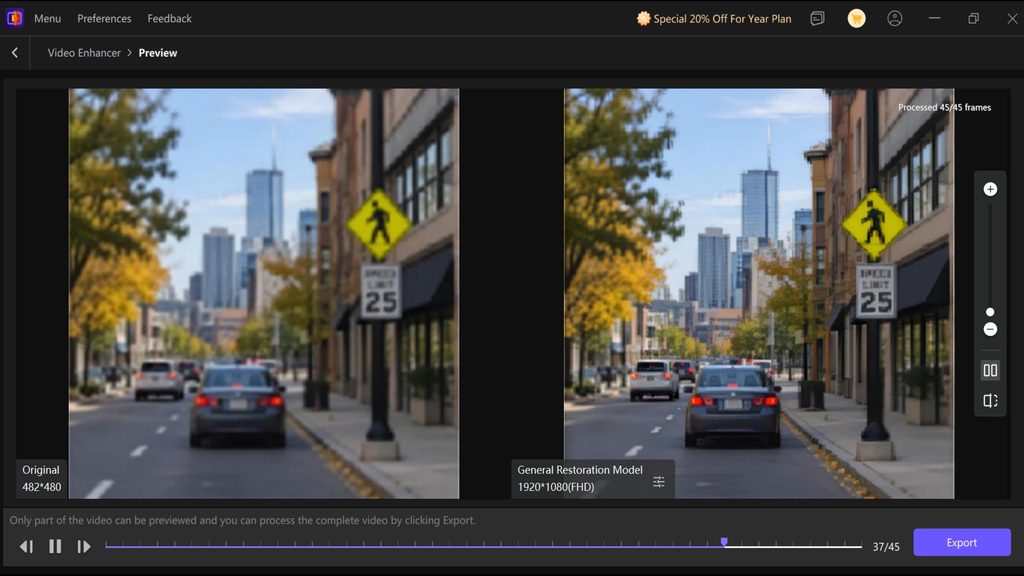
Test Results (verify against actual output): The enhanced footage shows sharper building edges and improved clarity in street signs. Background objects can be more distinguishable, whereas pixelation is less pronounced. But there can be some fine details in objects far away that cannot be seen because the source resolution is low.
Test 2: How to Make Blurry Videos Clearer
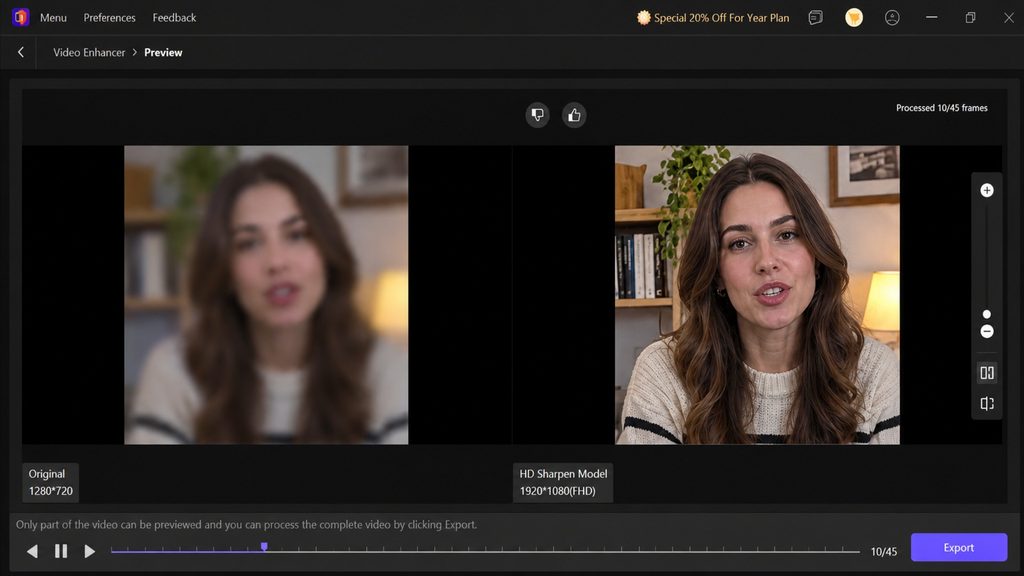
Test Conditions: An indoor video of a person talking, 12 seconds long, was chosen at the original resolution of 720p. The video has blurry facial features, unclear clothing textures, and soft background details. The HD Sharpen Model of VikPea was chosen with a resolution of 1080p.
Test Results (verify against actual output): The improved video has much better facial detail, more distinct hair, and sharper edges to clothes. Background details are also clearer compared to the original video. There might still be some highly blurred areas, but the image in general is clearer.
Test 3: How to Reduce Grain and Noise in Videos
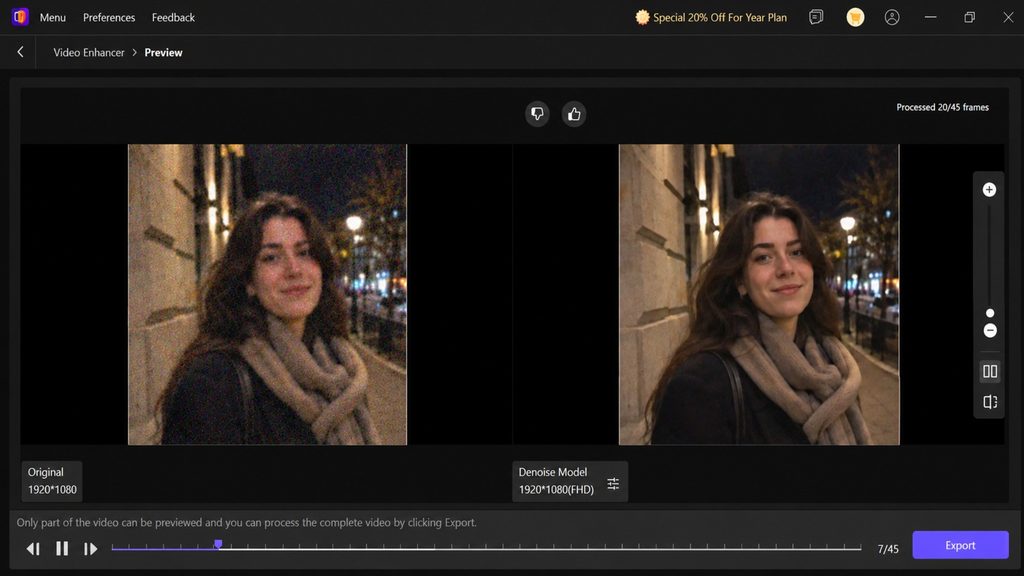
Test Conditions: This test was conducted on a 20-second video taken at night using a smartphone at 1080p. The original video recording has noticeable grain, color specks and noise in the dark regions. VikPea’s Professional Denoise Model was selected while maintaining the original 1080p resolution.
Test Results (verify against actual output): The improved image has less grain and fewer color speckles in the dark. Background surfaces are cleaner, with less distracting visual noise. Fine textures remain visible, indicating that the denoising process preserves natural details while reducing visual noise.
Test 4: How to Upscale Videos to 4K
Test Conditions: The landscape video that was used in this test had a resolution of 720p and a duration of 18 seconds. The footage shows poorly defined tree branches, blurry building edges, and limited detail in distant objects. The UHD Restoration Model of VikPea was chosen with the desired output resolution of 3840 x 2160 (4K).
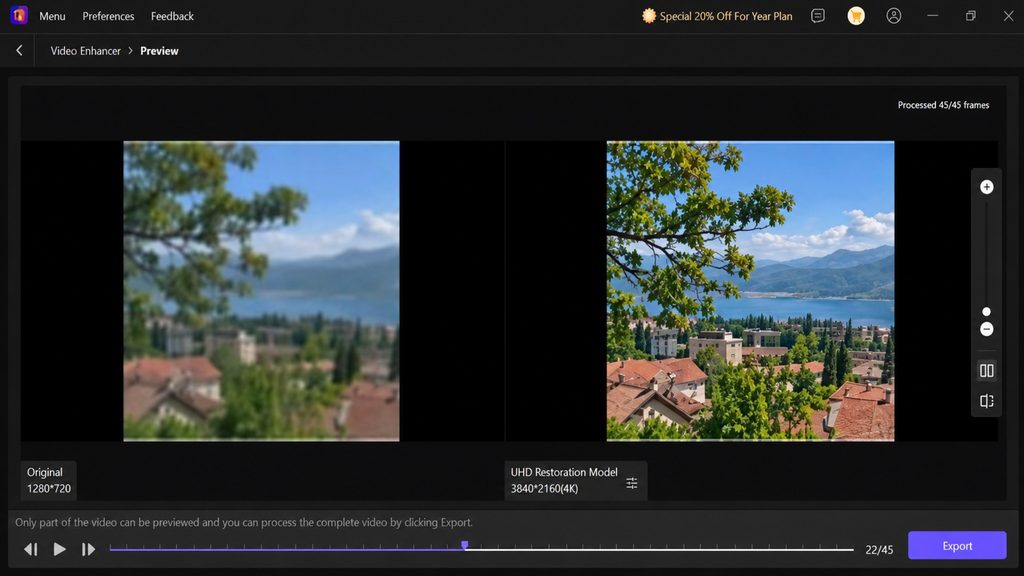
Test Results (verify against actual output): The upscaled image has sharper edges around structures and tree branches. The textures of the landscape are more evident, and the far-away objects are better defined. Nonetheless, certain minute details might not be as well revealed due to the quality of the original footage.
A Step-by-Step Guide to Using HitPaw VikPea
HitPaw VikPea offers a beginner-friendly interface with easy access to AI enhancement models, video previews, and export settings. Here’s how to improve your footage in four simple steps.
Step 1: Import Your Video
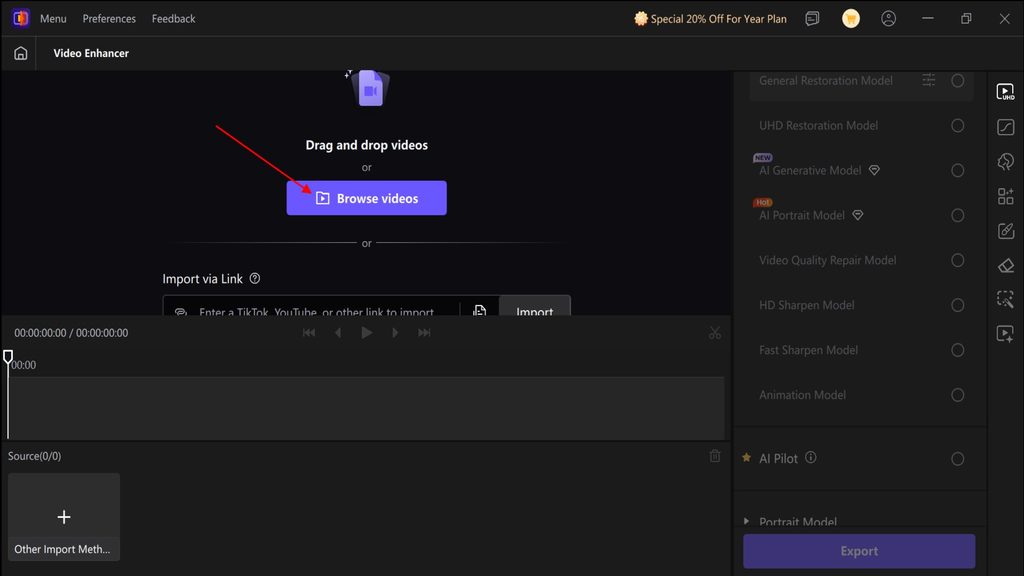
The first step in using HitPaw VikPea is to select Video Enhancer from the main interface and then upload your video by either clicking the video button and selecting your file or by dragging your video into the HitPaw VikPea workspace. The video formats supported are MP4, MOV, and AVI.
Step 2: Select an AI Enhancement Model
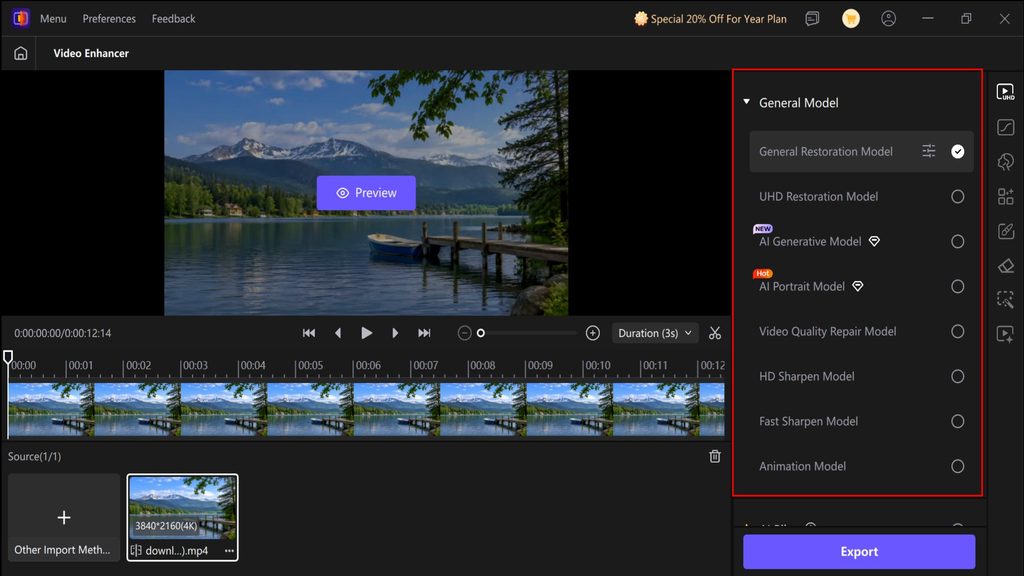
After the video is uploaded, the next step is to select an AI model that fits the video quality issue. For General Restoration, this would be used for low-quality video footage. For grainy video footage, the model to select would be Professional Denoise. For cartoon video footage, the model to select would be the Animation Model. After selecting the model, the next step would be to select the output resolution.
Step 3: Preview the Enhancement Results
To see the footage that has been enhanced, select the Preview button. To see other changes that may have occurred, for example, changes in textures and sharpness, the footage may be compared side by side. For better results or a more natural enhancement, other models may be switched to.
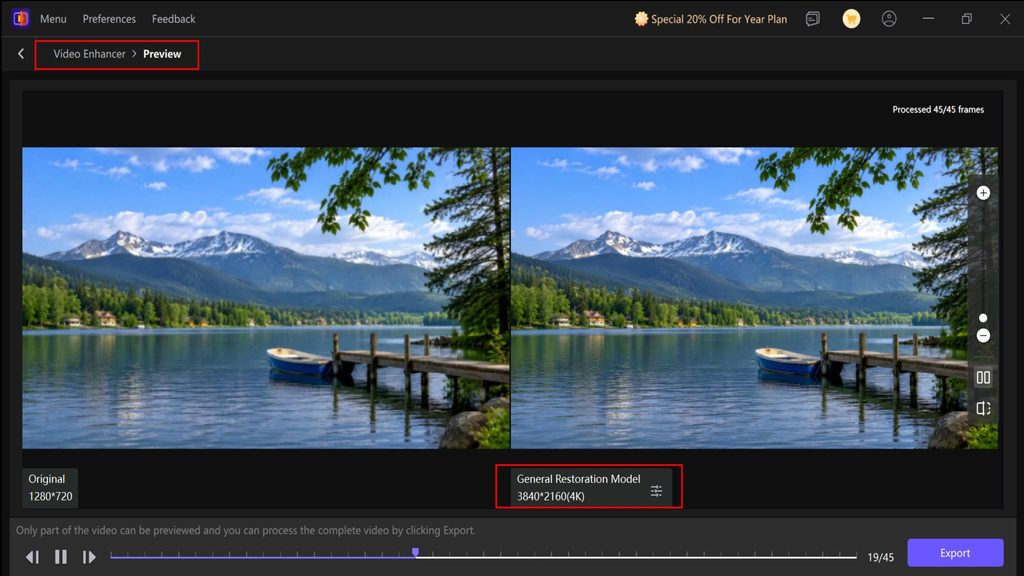
Step 4: Export the Enhanced Video
The final step is to select the resolution of the enhanced video and choose from the available settings. After that, select whether the video will be saved locally or to the Cloud, and then select Save.
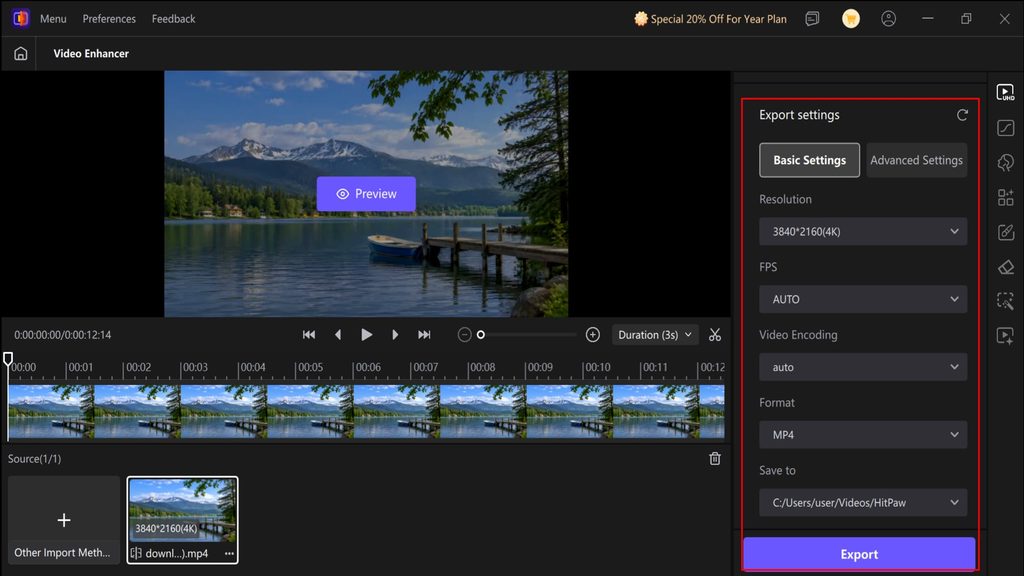
Pros and Cons of HitPaw VikPea
Pros
- User-friendly software with straightforward controls
- Multiple AI models for different video issues
- Supports video resolution upscaling to 4K and higher
- Allows side-by-side previews when exporting videos
- Supports batch processing for multiple videos
- Available for both Windows and Mac
Cons
- The free version can’t export enhanced videos.
- Some AI features require additional credits.
- Intensive video processing requires significant computing resources.
- AI cannot restore missing video information and details.
- There are no major version upgrades with the lifetime license.
HitPaw VikPea Pricing
HitPaw VikPea has three main paid plans: Monthly, Yearly, and Lifetime (Perpetual). The major differences between the plans are the license duration, cost, and software upgrades. The core enhancement tools are the same across the plans.
The following prices are listed on HitPaw’s official Windows pricing page as of November 2026. They are promotional prices in USD, excluding taxes, and are subject to change.
| Plan | Windows Price | Mac Price | Key Benefits |
| Monthly | $43.19/month | $70.39/month | A good option for short-term projects. |
| Yearly | $99.99/year | $110.39/year | Good choice for regular users. |
| Lifetime | $350.39 one-time | $350.39 one-time | A good option for long-term projects. |
You can find the Monthly plan if you don’t want to commit to a subscription for a long time. The Yearly plan may be a better fit for those who post videos consistently, and the Lifetime plan may be a good one-time purchase option. Just be aware of the current upgrade policy and credit requirements before selecting a plan.
HitPaw VikPea for Different Types of Users
HitPaw VikPea caters to all types of video editors from beginners to experts. Thanks to its intelligent features, it can solve numerous video issues automatically, which otherwise would require complicated manual modifications. Let’s see how HitPaw VikPea responds to common video enhancement needs.
Content Creators and YouTubers
YouTubers usually have older video clips and work with footage that was recorded across multiple different devices. VikPea helps to upscale video resolution and process grain and noise, giving editors better control when preparing videos for large screens. It can also help creators when they post updated versions of older content.
Users Restoring Old Videos
When restoring old family videos, reducing visual noise and improving visible details can make the recordings easier to watch. VikPea can do just that. It helps restore details in faces, objects and backgrounds. For preserving and enhancing older family videos, it can really help.
Video Editors and Professionals
For video editors, footage doesn’t always meet the quality requirements for the final video. For editors, VikPea can help remove video noise, improve sharpness, and upscale video clips to better meet project requirements. Sometimes, when using artificial intelligence (AI) tools in video processing, editors will want to review the final output to look for any unnatural textures.
Beginners with Little Video Editing Experience
The truth is, not everyone knows how to master professional video editing software. That’s where VikPea comes in. VikPea provides AI models to fix video flaws. All a user needs to do is import a video clip, choose an enhancement model, preview the change and export the enhanced version. VikPea streamlines video enhancement for amateur users who don’t want to struggle with using complex editing software.
FAQs About HitPaw VikPea
1. How to Fix a Pixelated Video with HitPaw VikPea?
Using HitPaw VikPea, import your pixelated video. Then select the General Restoration Model to address compression artifacts and increase picture detail. Preview the changes, and if the video still isn’t clear enough, increase the output resolution.
2. How to Enhance Video Quality with AI?
Use an AI video enhancer to analyze your video and improve blurriness and noise. Choose an appropriate enhancement model. Preview the changes and save the improved video.
3. Is There a Free 4K Video Enhancer Online?
Yes, HitPaw Online Video Enhancer and other similar apps allow users to process their videos for free to enhance video quality and increase resolution up to 4K. However, free usage has limits on processing, file size and exports.
4. Is HitPaw VikPea Free to Use?
The free version of HitPaw VikPea allows users to preview AI video enhancements. However, to export the enhanced videos, users need to purchase a license.
5. Does HitPaw VikPea Work on Mac?
HitPaw VikPea works on macOS and allows AI video upscaling, noise reduction, and restoration. With a paid license, macOS users can load media, select enhancement models, preview results, and export the final videos.
Final Verdict: Is HitPaw VikPea Worth It?
HitPaw VikPea can provide an easy way to increase the resolution of low-res footage, remove noise and restore older videos without doing complicated edits. Its AI models and user-friendly interface are designed for users of different skill levels. It’s worth noting processing power usage, subscription costs, and sometimes unnatural details. For the price, VikPea is a great tool to fix and improve your footage, but to justify the price fully, the results are best judged on a case-by-case basis, and the best way to do that is to test your own videos for free.
Written by
