



Table of Contents
Acer’s impressive Predator Triton 14 AI was first launched at last year’s Computex, cementing Acer’s desire to drive AI-powered hardware to both gamers and creatives. The 14-inch variant we’re testing comes equipped with a powerful Intel Core Ultra 9 288V and RTX 5070 pairing, making it a great choice for creative workflows, gaming, and general consumption.
The Triton 14 AI also comes with an impressive 1800p OLED touchscreen – with included stylus – delivering stunning picture quality and color accuracy, which is capable of color-accurate work. However, with a steep price point and the inability to drive high-frame rates in more demanding titles at its max 1800p screen resolution, is it worth the cost? We put it through our usual tests to see how it compares against some of the market’s other notable 14-inch laptops.

- CPU: Intel Core Ultra 9 288V
- GPU: Nvidia GeForce RTX 5070
- Memory: 32GB LPDDR5X – 8533MT/s
- Storage: 2TB NVMe SSD
- Max refresh rate: 120Hz
- Resolution: 2880 x 1800
- Panel Type: 14.5-inch OLED touchscreen
With a sleek and stylish design, the Acer Predator Triton 14 AI is a great-looking laptop. Packed with a fantastic OLED screen for vivid colors and contrast, the 120Hz 1800p panel provides a solid display for both gaming or everyday usage. This model features Nvidia’s RTX 5070 GPU alongside Intel’s Core Ultra 9 288V CPU, perfect for delivering solid performance in games and creative tasks.
That configuration comes at a price though, and at over $2,599 at time of writing, it’s definitely one of the more premium options in today’s market.
- Capable gaming performance for the hardware
- Great OLED screen colors and HDR
- Excellent build quality and cooling
- Great camera, microphone, and speaker setup
- Lots of handy features and controls
- Rather expensive for the components
- Soldered RAM and not many upgrade options
- Low-powered CPU
Pricing and availability
The Acer Predator Triton 14 AI is not so commonly found but is available in a few places. Such as on Amazon US for $2,599.99 and on Currys UK for £2,699. Considering it packs a Core Ultra 9 and RTX 5070, it’s certainly on the more expensive side for what it packs; however, it does have a calibrated OLED touchscreen at 1800p, so it does sacrifice some power for that.
Latest tech deals.
- AMD Ryzen™ 9 9900X 12-Core - was $499 now $328
- CORSAIR 4000D PC Case - was $124.99 now $75.99
- Hisense 65" Class E6SR - was $549 now $377.99
- Apple 2026 MacBook Air - was $1,999 now $1,799
- Skytech Gaming PC Desktop (9850X3d) - was $4,299 now $3,799
- Apple Magic Mouse - was $79 now $59
- MSI Prestige 16 Flip - was $2,149 now $1,899
- Kotin 9700X Gaming PC - was $2,399 now $2,199
Prices correct as of October 9th, 2026.
Other RTX 5070 gaming laptops can be found for quite a bit less, including MSI’s Katana 15 HX (around $1,679 right now) or HP’s Omen Max 16 (for $1,799). ASUS’s ROG Strix G18 is one of the few similarly priced alternatives, costing around $2,327 at time of writing.

Acer Predator Triton 14 AI box, Image by PC Guide

Acer Predator Triton 14 AI box top edge, Image by PC Guide

Acer Predator Triton 14 AI packaging, Image by PC Guide

Acer Predator Triton 14 AI box contents, Image by PC Guide
Overall design
The Acer Predator Triton 14 AI comes in a nicely packaged box. Encompassed by thick cardboard, there’s plenty of recyclable material used to secure the machine. It even has instructions on how you can fold it for other use cases, like reusing it for a headphone stand – interesting but unlikely to be used by most users.
In general, the 14-inch laptop comes in at a weight of 1.6 kg, so the two combined make for a surprisingly portable and lightweight laptop. However, that does mean that with dimensions of 321.8 x 221 x 17.31 mm, it doesn’t pack a lot of cooling. So the Intel Core Ultra 9 288V processor has a max turbo power of just 37W, and the RTX 5070 laptop GPU has a max graphics power of 110W.
This is what powers the 14-inch OLED touchscreen. Coming with a 2880 x 1800 resolution and a 120Hz refresh rate, the display offers a larger viewing area with sharp detail and smooth performance. Along the top edge, there’s a Full HD webcam and infrared sensor, enabling Windows Hello for quick, secure logins. It also supports user presence detection, helping protect your OLED panel and sensitive data through features like automatic screen dimming and locking.

Acer Predator Triton 14 AI top lid, Image by PC Guide

Acer Predator Triton 14 AI underside, Image by PC Guide

Acer Predator Triton 14 AI front edge, Image by PC Guide

Acer Predator Triton 14 AI right side, Image by PC Guide

Acer Predator Triton 14 AI left side, Image by PC Guide
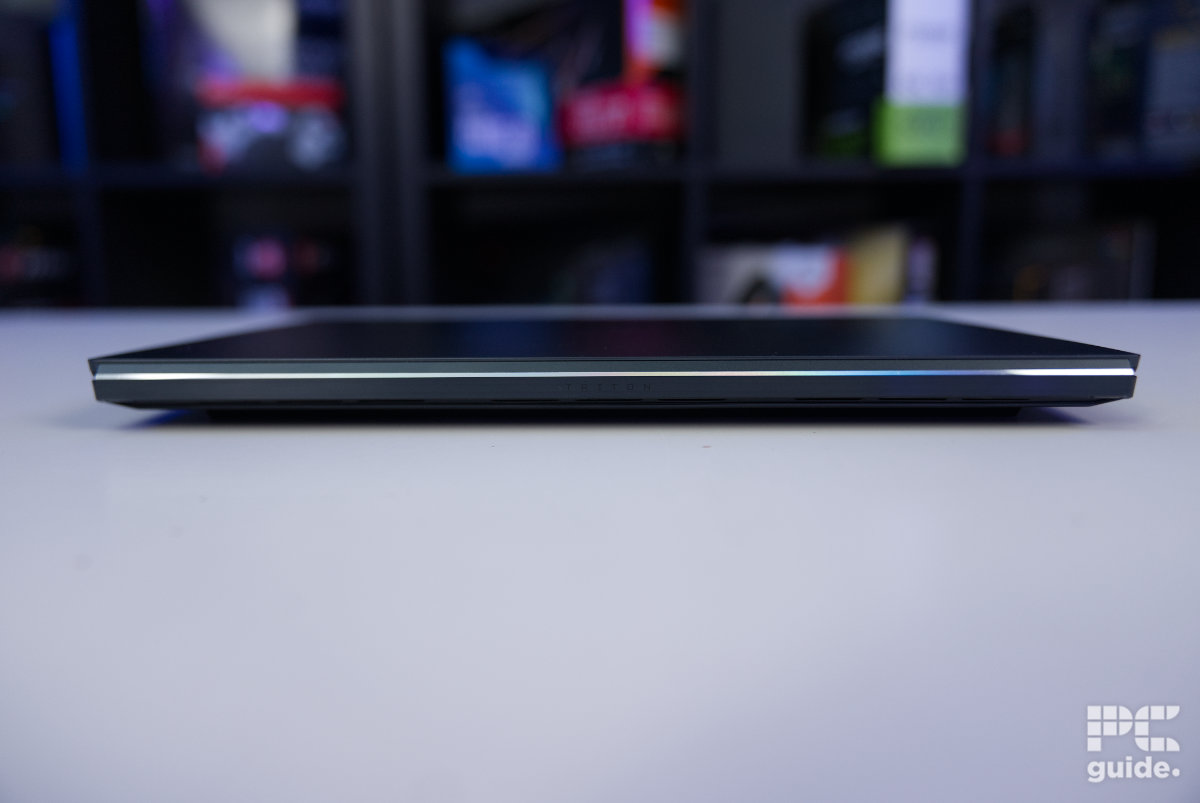
Acer Predator Triton 14 AI back, Image by PC Guide

Acer Predator Triton 14 AI Triton back, Image by PC Guide

Acer Predator Triton 14 AI front off, Image by PC Guide

Acer Predator Triton 14 AI keyboard off, Image by PC Guide

Acer Predator Triton 14 AI Intel & Nvidia, Image by PC Guide

Acer Predator Triton 14 AI logo chassis, Image by PC Guide

Acer Predator Triton 14 AI power, Image by PC Guide

Acer Predator Triton 14 AI ESC, Image by PC Guide

Acer Predator Triton 14 AI screen, Image by PC Guide

Acer Predator Triton 14 AI on front, Image by PC Guide

Acer Predator Triton 14 AI on angled, Image by PC Guide
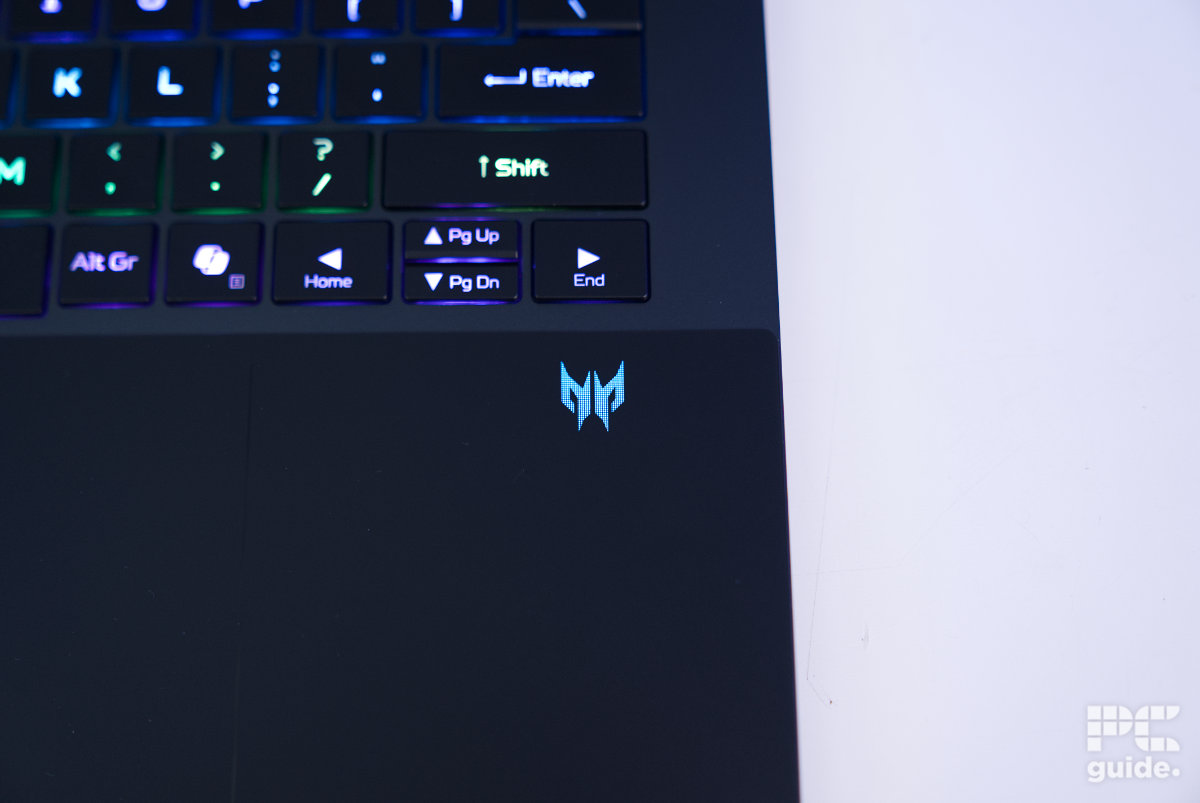
Acer Predator Triton 14 AI Predator logo chassis on, Image by PC Guide
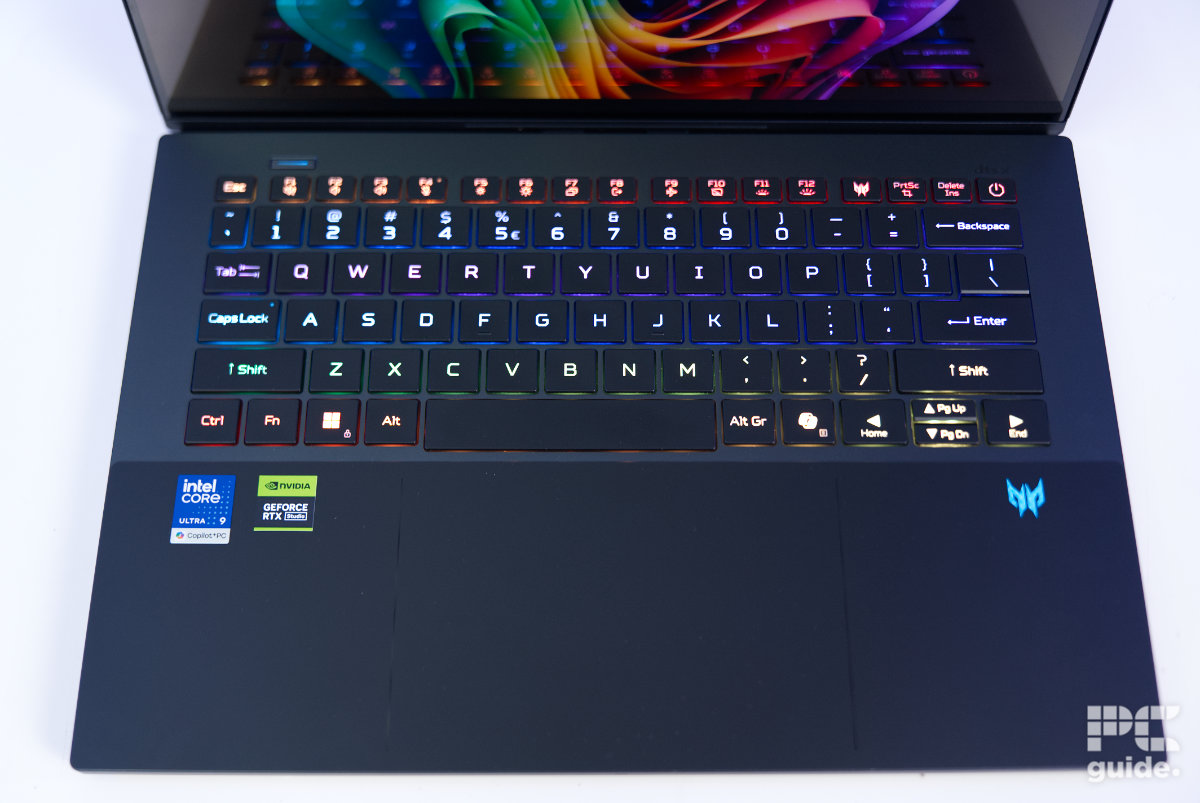
Acer Predator Triton 14 AI keyboard on, Image by PC Guide

Acer Predator Triton 14 AI screen on, Image by PC Guide

Acer Predator Triton 14 AI lid on, Image by PC Guide

Acer Predator Triton 14 AI underside components, Image by PC Guide

Acer Predator Triton 14 AI bottom cover, Image by PC Guide
Below the display, the CNC-machined aluminum chassis houses a per-key RGB keyboard that feels genuinely satisfying to use. It’s not a soft, squishy membrane – instead, it has a more mechanical-like response, offering a tactile and responsive typing experience. The layout is a compact 65% design, meaning there’s no dedicated numpad, and the function and arrow keys are more tightly integrated. Even so, it still manages to include both a Predator key and a Copilot key.
To the bottom right, there’s an RGB-lit Predator logo that syncs with the keyboard lighting and can be customized through the accompanying software. Centered below the keyboard is a fairly large touchpad, subtly outlined by glossy strips on either side. When idle, these are invisible, but they illuminate in white during use to indicate the active area. Since the surface is otherwise uniform, it can be difficult to locate the trackpad at first, so enabling the lighting permanently in settings can make it easier to use.
The rest of the laptop adopts a more understated design compared to bulkier gaming machines. The lid features a clean gray finish, broken up only by the Predator logo, which incorporates vertical LED strips for a touch of lighting.
At the rear, the lid meets a large hinge that doesn’t extend to 180°, meaning the device can’t be used as a 2-in-1. The back itself is minimal, with a subtle TRITON logo and no visible exhaust vents. Instead, cooling is handled more discreetly, with vents positioned along the underside to direct heat away without disrupting the clean aesthetic.
Acer Predator Triton 14 AI lid with box, Image by PC Guide

Acer Predator Triton 14 AI desk setup (2), Image by PC Guide

Acer Predator Triton 14 AI desk setup, Image by PC Guide

Acer Predator Triton 14 AI CS2 (3), Image by PC Guide

Acer Predator Triton 14 AI CS2 (2), Image by PC Guide

Acer Predator Triton 14 AI CS2 (1), Image by PC Guide

Acer Predator Triton 14 AI CS2 setup, Image by PC Guide
The exhaust fans on the bottom are sort of separated from the two intakes, meaning they’re not reusing the hot air for cooling. Since the Acer Predator uses two long rubber feet on the front and back, it creates a sort of barrier between the vents to create the different channels and prevent mixing between the two.
On the underside, you’ll find some of the speaker grilles toward the front, though the laptop packs far more than just a typical pair. In total, it features six speakers, split between bass and treble, delivering an impressively rich audio experience for a portable device. They genuinely stood out in testing – at full volume, the output is extremely loud, with even 50% proving more than enough to be heard across our office. Despite the power, audio remains crisp with clear vocals, and importantly, there’s no noticeable chassis vibration, so it stays comfortable to use even at higher volumes.
Removing the bottom panel is fairly straightforward, but a bit time-consuming. There are around 11 screws in total (at two different lengths) with one hidden beneath a sticker, which requires a spudger to carefully pry the chassis apart. Even once inside, upgrade options are quite limited.
There’s only a single NVMe slot, so expanding storage means replacing the existing drive rather than adding another. The same applies to components like the wireless module, while the battery – positioned below – requires more effort to remove. Access does at least allow for basic maintenance, such as cleaning the fans and inspecting the relatively compact vapor chamber that cools both the CPU and GPU. Memory is soldered to the board, enabling speeds of over 8000 MT/s, but this also means you’re locked into the installed (32 GB in this model) capacity.

As for connectivity, the left side includes a USB Type-C port, a USB Type-A port, and a 3.5mm audio jack, alongside two status LEDs and a speaker grille. On the right, there’s another set of USB Type-A and Type-C ports, plus an HDMI output and a microSD card slot, along with an additional speaker grille. There’s also a small microphone opening located along the front edge of the laptop.
| Spec | Value |
|---|---|
| Weight: | 1.60 kg |
| Dimensions WxDxH: | 321.8 x 221 x 17.31 mm |
| Power Supply Wattage | 140W |
Screen
After overlooking the laptop and going through the setup process, I measured the screen to check on its accuracy and effectiveness as a display. Putting it through our laptop test with a Datacolor SpyderX Elite, I checked the OLED panels’ brightness, color, accuracy, contrast, and more to see how it performs.

Generally, the color gamut of the display is very accurate, depending on the spectrum you’re using. In standard sRGB, it manages 100% coverage straight out of the box and is ideal for color-accurate work in that space. When looking at the AdobeRGB spectrum, it achieves 95%, and then 96% in DCI-P3, so still pretty accurate for the majority of work.
In testing, I found the color variation or the average deltaE was just 0.65 off the optimum and maxed out at 1.72. So even with a large color gamut, it still manages to maintain its color accuracy. The white point of the screen sits at 6600K, just 100 over the optimal point.
Plus, thanks to the display being an OLED screen, the black point and contrast are at the ideal levels of 0 and infinity:1. It also manages to keep to the gamma level of 2.2, too.
Lastly, the brightness of the display varied at quite a range from its dimmest to its brightest in the standard range. Dropping to just 22 nits at its lowest, it does reach a total of around 390 nits, so it’s not the most eye-searing screen, but it’s still an effective level.

Battery life
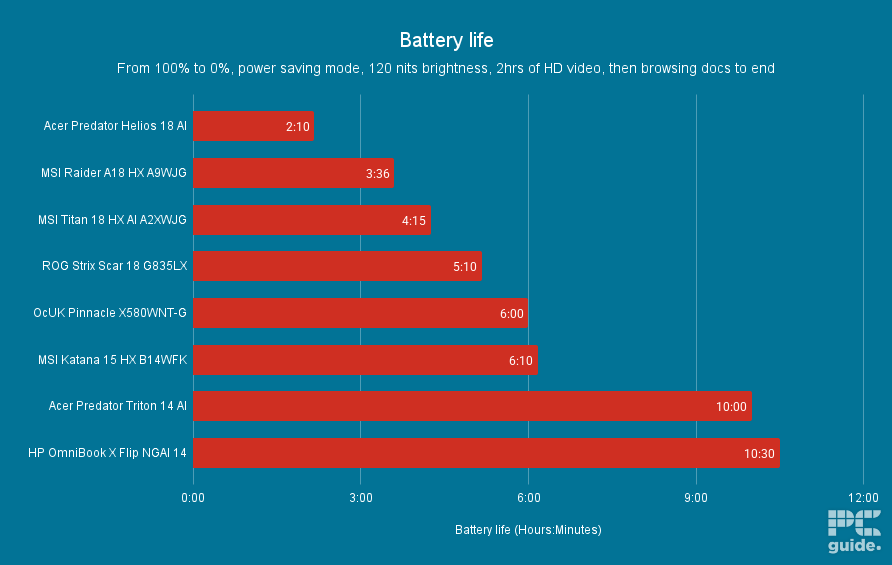
Next up, I tested the battery life of the laptop. Charging it up to 100%, and then turning on all the battery saver modes, including the Eco mode in PredatorSense software and standard Windows modes. Setting the brightness to around 120nits, I first ran a video for 2 hours, before stopping that and leaving it on standard documents and browsing sites until depletion.
In the case of the Acer laptop, after the first two hours, it dropped just 22% from its battery and was at 78% after the video. Then in the hours after, it dropped just 10% for each one. Which means by the end of it, the laptop had a battery life of around 10 hours in our test.
As a comparison, the bigger, more powerful Predator Helios 18 AI lasted just 2 hours and 10 minutes. Instead, the lower power on this one was comparable to the HP OmniBook x Flip, which makes it a sturdy and long-lasting option for taking around and working on it without your charging brick if you’re doing lighter work.
Software
As with all Windows laptops, you first have a 5 to 10-minute setup process of going through all the options and updating the software. But once you get in, there are plenty of pre-installed apps on there that might not be to your taste.
There’s a bunch of Acer software, but also McAfee antivirus, so it’s a mixed bag of usefulness. However, some of the Acer stuff is quite handy and useful, including PredatorSense, which lets you set up different scenarios and settings to control the fans and various behaviours of the laptop. Along with tracking of temps and frequencies to make sure your performance is at its peak.
Acer also has its own user sensing programme, offering great control of the laptop behaviours and its safety and privacy – not to mention some OLED care tools for reducing burn-in. But then there are plenty more apps that are not so prominent, such as Acer Assist on store, LiveArt, Voice Console, and Quick panel.

Acer Predator Triton 14 AI PredatorSense Home, Image by PC Guide

Acer Predator Triton 14 AI PredatorSense personal settings, Image by PC Guide

Acer Predator Triton 14 AI PredatorSense personal settings 2, Image by PC Guide

Acer Predator Triton 14 AI PredatorSense personal settings 3, Image by PC Guide

Acer Predator Triton 14 AI checkup, Image by PC Guide

Acer Predator Triton 14 AI scenario, Image by PC Guide

Acer Predator Triton 14 AI monitoring, Image by PC Guide

Acer Predator Triton 14 AI Chroma Tune, Image by PC Guide

Acer Predator Triton 14 AI User Sensing home, Image by PC Guide

Acer Predator Triton 14 AI User Sensing, Image by PC Guide

Acer Predator Triton 14 AI User Sensing wake on approach, Image by PC Guide

Acer Predator Triton 14 AI smart reminder, Image by PC Guide

Acer Predator Triton 14 AI multi screen assistance, Image by PC Guide
Performance
Next, I put the laptop through our testing lab. Putting it through a range of gaming and synthetic tests and benchmarks, I put the laptop through its paces to see what it could do.
Gaming
First up are the gaming benchmarks, running them in both native 1800p and 1080p resolutions. The latter of which I could use to compare against previous laptops we’ve tested and reviewed in the past.

Acer Predator Triton 14 AI CS2 1800p, Image by PC Guide

Acer Predator Triton 14 AI CS2 1080p, Image by PC Guide

Acer Predator Triton 14 AI Cyberpunk 2077 1800p, Image by PC Guide

Acer Predator Triton 14 AI Cyberpunk 2077 1080p, Image by PC Guide

Acer Predator Triton 14 AI Cyberpunk 2077 RT 1080p, Image by PC Guide

Acer Predator Triton 14 AI Doom Eternal 1800p, Image by PC Guide

Acer Predator Triton 14 AI Doom Eternal 1080p, Image by PC Guide
Generally, the Acer Predator Triton 14 AI couldn’t quite achieve the best performance on 1800p and top settings, falling shy of the 120Hz refresh rate the display features. But with some setting adjustments, we did manage to boost performance quite exponentially.
Such as in Cyberpunk 2077, at 1800p Ultra it averaged 52FPS, 90FPS at medium, and 105FPS at low. While turning on RT overdrive dropped it to 26, with medium ray tracing averaging 32FPS, and then RT low increased to 54FPS. But those are just the presets, and you can certainly get more advantage from DLSS and upscaling to increase that performance further.
When it comes to running that in 1080p, it does, in fact, improve. Ultra now averaging 97FPS, medium at 110, and low at 111FPS. As for the ray tracing modes, those achieve an average framerate of 42, 61, and 89FPS respectively.
Moving onto Doom Eternal, it’s a bit of a lighter load and usually gets high framerates. In the case of the Acer laptop, at 1800p Ultra Nightmare mode, it averages 69FPS, with a high of 150, and a low of 163FPS. At 1080p resolution, those averages become 225, 236, and 277FPS, respectively.
Then for Counter-Strike 2, at 1800p ‘very high’ the laptop averages 103FPS, with medium increasing to 208FPS, and low at 246FPS. At 1080p, those averages become 182, 263m, and 277FPS respectively.
Synthetics
In the next set of tests, I put the laptop through a range of synthetic tests. Ranging from standard 3D tests, to the AI capabilities of the laptop, it should provide a good overview of it beyond gaming.

Acer Predator Triton 14 AI 3DMark, Image by PC Guide

Acer Predator Triton 14 AI Blender GPU, Image by PC Guide

Acer Predator Triton 14 AI Geekbench AI CPU, Image by PC Guide

Acer Predator Triton 14 AI Geekbench 6 CPU, Image by PC Guide

Acer Predator Triton 14 AI Geekbench 6 GPU, Image by PC Guide

Acer Predator Triton 14 AI Geekbench AI GPU, Image by PC Guide

Acer Predator Triton 14 AI Blender CPU, Image by PC Guide
Firstly, we have 3DMark testing the 3D performance across various APIs and technologies. In these, the overall scores achieved by the laptop are 2,949 in Steel Nomad, 8,231 in Port Royal, 5,706 in Time Spy Extreme, and 8,069 in Fire Strike Ultra.
Then, testing the rendering performance of the machine in Blender 4.5 benchmark, I got the samples per minute across three scenes from both the CPU and GPU. For the CPU, it got an average of 66.78 in monster, 43.45 in junkshop, and 33.18 in classroom. Whilst the GPU managed 1,907.48, 1,003.66, and 1,022.45, respectively.
Next up is Geekbench 6, used as a benchmark for a variety of hardware. In that, the CPU got 2,756 in the single and 11,046 multi-core test. As for the GPU, it scored 132,325 in OpenCL and 38,326 in Vulkan APIs. As for the Geekbench AI benchmarks, the CPU got 3,204 in single precision, 1,396 in half precision, and 6,296 in quantized. Whereas the GPU achieves 19,076, 32,903, and 14,897, respectively.
Thermals and noise levels
Lastly, in our suite of tests, I put the laptop through its thermal limits. Tracking the system via HWInfo for 30 minutes, after 5 minutes at idle, I then ran 20 minutes of Furmark 2 on both CPU and GPU, before another 5 minutes of idle. That way, I can see how it does under complete thermal and power load.

When at idle, the CPU and GPU were both sitting quite toasty. Both under 10W, they were running at around 38°C, while without any active or perceptible cooling. It’s only once the load starts that everything kicks in.
Firstly, the power of the parts spikes, with the GPU reaching its max of 110W, while the CPU reaches 36W; however, it clocks down and sits around 17W instead. During that time, the two parts reached a temperature of 88°C and 82°C, before clocking down and cooling off as they averaged to 80°C and 65°C. In that time, the clock rates of the two were around 2,200MHz and 1,800MHz.
During this time, in high-performance mode, the fans really are quite loud, and there’s plenty of heat coming out of the back. Heating up the area behind the laptop, and in fact, the vent area above the keyboard on the chassis. But the rest of it remained surprisingly cool; the keyboard virtually didn’t change temperature while the keypad warmed up slightly.
- CPU: Intel Core Ultra 9 288V
- GPU: Nvidia GeForce RTX 5070
- Memory: 32GB LPDDR5X – 8533MT/s
- Storage: 2TB NVMe SSD
- Max refresh rate: 120Hz
- Resolution: 2880 x 1800
- Panel Type: 14.5-inch OLED touchscreen
Conclusion
Overall, the Acer Predator Triton 14 AI is a great laptop. With a high-resolution OLED touchscreen with some great colors and HDR. However, the lack of a greater angle on the hinge to utilize it to the max, and an underpowered CPU and GPU, does mean it can’t always reach great performance at 1800p.
It feels like it’s more geared towards creative users than an all-in-1 solution. Still, the overall design quality and aesthetics do make it a sturdy and strong laptop for general use if you can afford it and have a use for it.
Written by
