


Table of Contents
At the pinnacle of MSI’s gaming laptop line-up sits the Titan range: desktop replacement laptops that are often the most powerful you can buy from any brand, year-on-year. The cream of the crop, they typically come with the best components and build quality that MSI offers.
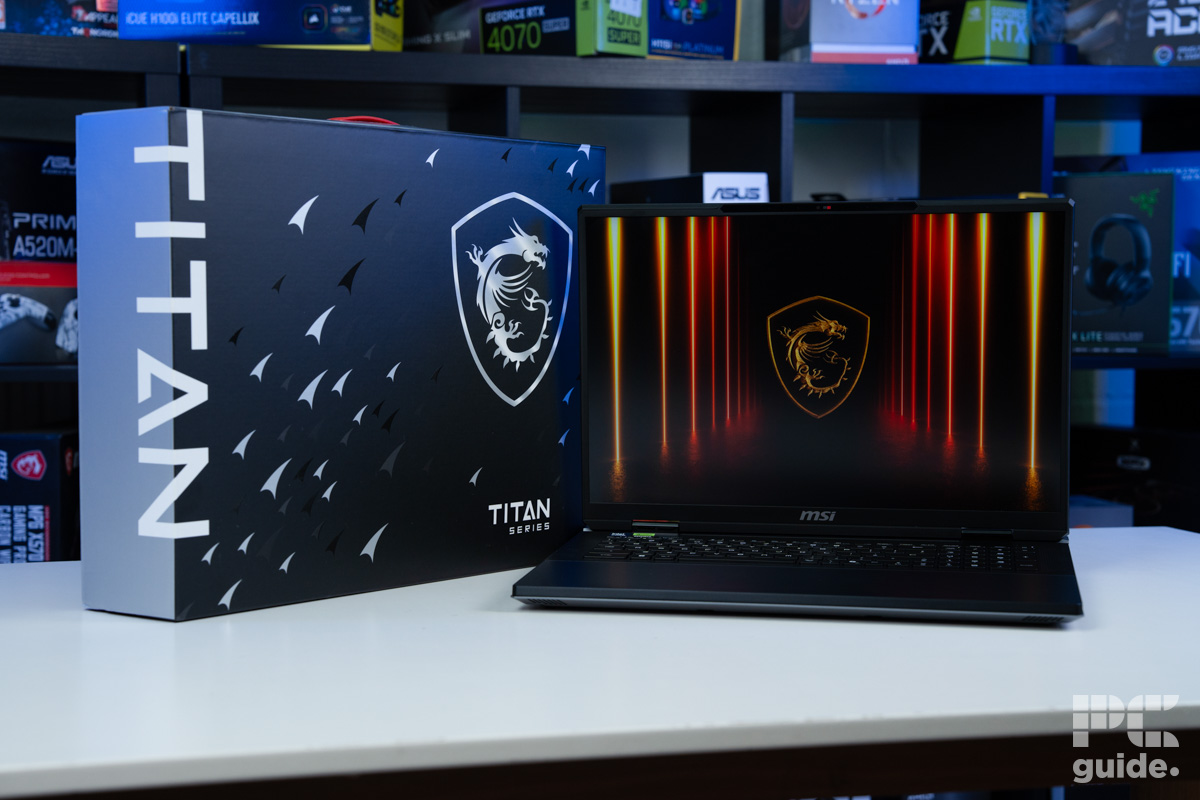
This year, we’re getting hands-on with the MSI Titan 18 HX AI A2XWJG (with the obligatory inclusion of ‘AI’ in the name, as with many products released over the last couple of years). This model offers up an RTX 5090 GPU paired with an Intel Core Ultra 9 285HX CPU, along with 2TB of NVMe storage, 64GB of RAM, and a WQUXGA 18-inch MiniLED panel with a 120Hz refresh rate.
It’s certainly a toned-down gaming version of the MSI Raider, with some better quality hardware on the chassis. Although its fanciful design might just come at the cost of usability, like the touchpad, it has some drawbacks considering the price it comes with. So, putting the laptop to the test, we evaluate it for how good a choice it is.
Latest tech deals.
- AMD Ryzen™ 9 9900X 12-Core - was $499 now $328
- CORSAIR 4000D PC Case - was $124.99 now $75.99
- Hisense 65" Class E6SR - was $549 now $377.99
- Apple 2026 MacBook Air - was $1,999 now $1,799
- Skytech Gaming PC Desktop (9850X3d) - was $4,299 now $3,799
- Apple Magic Mouse - was $79 now $59
- MSI Prestige 16 Flip - was $2,149 now $1,899
- Kotin 9700X Gaming PC - was $2,399 now $2,199
Prices correct as of October 9th, 2026.

- CPU: Intel Core Ultra 9 285HX
- GPU: NVIDIA GeForce RTX 5090
- Memory: 64GB DDR5-6400 (2x32GB)
- Storage: 2TB SSD
- Max Refresh Rate: 120Hz
- Resolution: 3840×2400
- Panel Type: 18″ MiniLED
The MSI Titan is the pinnacle of what a laptop can offer. Bringing flagship desktop-class hardware into a mobile form factor, it has the performance and power needed to deliver exceptional results across gaming and demanding workloads. It may fall short in a few areas, but given the price point, you would expect almost every aspect of the experience to sit at the very top level.
It also pairs this performance with a high-resolution, fast display that delivers strong colour accuracy and impressive brightness, making it more than just a gaming machine. This helps turn it into a well-rounded desktop replacement that can handle a variety of use cases. If you have the budget and want one of the most powerful laptops available, the MSI Titan is a compelling choice – just don’t expect to be carrying this behemoth around too often.
- Exceptional performance
- Good thermal management on internal components
- Top-quality Cherry keyboard
- Fast and plentiful connectivity options
- Easy accessibility and upgradeability
- Sturdy and quality build of magnesium-aluminum chassis
- The touchpad is rather disappointing, considering the innovative tech
- Extremely pricey
- Poor quality webcam and speakers could be louder
- Gets loud under load
- External surface can get hot
Pricing and availability
MSI’s Titan laptop series has the subtitle of ‘The Ultimate Powerhouse’ on its website, so it shouldn’t come as a surprise that the Titan 18 HX AI A2XWJG has quite the staggering price point to match that title. As an RTX 5090 laptop paired with a top-end Core Ultra 9 285HX, it’s currently the top-end hardware you can get on mobile, and in this chassis, it will cost you $5,500/£6,000.
That is the sort of price we’ve seen for the RTX 5090 laptops. Be it from various retailers and brands, like the ROG Strix Scar or MSI Raider, they also easily sit at around the $5,000 mark. So that’s just the eye-watering price it is to get the top-end graphics card in a mobile form factor.

MSI Titan 18 HX AI A2XWJG box contents, Image by PC Guide

MSI Titan 18 HX AI A2XWJG box, Image by PC Guide

MSI Titan 18 HX AI A2XWJG Lucky, Image by PC Guide
Overall design
With a screen size of 18 inches, and the amount of power this laptop has under the hood, it’s no surprise it’s pretty darn hefty. You’d struggle to fit this into most backpacks, even my fairly large one (with a back pocket measuring 311.2 x 57.2 x 457.2mm), there’s only just enough space to fit it in and zip it up, with a small amount of space left on top.
The laptop weighs a rather chunky 3.6 kg, rounding out to just under 5kg once you chuck in the power brick too. It certainly falls under the bracket of ‘desktop replacement‘ option rather than a commuting laptop.
The massive chassis does convey a high quality and durable design though. The outside shell definitely cuts back on the gamer look compared to the MSI Raider, also changing out the red highlights for blue and silver parts, complementing the black primary color.

MSI Titan 18 HX AI A2XWJG back vent and IO, Image by PC Guide

MSI Titan 18 HX AI A2XWJG closed front, Image by PC Guide

MSI Titan 18 HX AI A2XWJG left side, Image by PC Guide

MSI Titan 18 HX AI A2XWJG lit touchpad, Image by PC Guide

MSI Titan 18 HX AI A2XWJG logo, Image by PC Guide

MSI Titan 18 HX AI A2XWJG power adapter, Image by PC Guide

MSI Titan 18 HX AI A2XWJG right side, Image by PC Guide

MSI Titan 18 HX AI A2XWJG SteelSeries and Cherry, Image by PC Guide

MSI Titan 18 HX AI A2XWJG touchpad, Image by PC Guide

MSI Titan 18 HX AI A2XWJG webcam, Image by PC Guide

MSI Titan 18 HX AI A2XWJG kayboard, Image by PC Guide
This Titan 18 has massive vents on the back to keep the combined 270W of the CPU and GPU in check and cooled down, and once the fans come on, you’ll be well aware of how much work they do. The vent does add a peculiar pattern that stands out and adds texture, taking away from the more subtle look of the rest of the laptop. There’s an MSI logo on the lid which lights up, though you can turn the RGB off if you like.
On the inside, the keyboard is pushed back rather far, protruding in the upper half, right under the screen. That does mean you have to rest most of your forearms on the metal plating at the front. It doesn’t get too hot under use, but the hard edge can get a bit abrasive on your wrist/forearms after a while.
It does allow for plenty of space for the large touchpad, which measures in at 15.5cm. The touchpad is seamlessly integrated into the body, with haptic action, but that’s about as good as it gets as it is mostly a pain to use. Firstly, if the RGB is off, it can be very hard to find where the touchpad is located. It is then hard to control as it requires you to take off your fingers between clicks to double click, and sometimes it stops holding clicks. It is very hit or miss experience, and we were less than impressed with it. It’s no surprise, then, that the laptop comes with a gaming mouse, which I ended up using for the majority of the testing.
On the other hand, the keyboard was fantastic to use. Made in collaboration with Cherry for the switches and SteelSeries for the lighting, it feels like a standalone mechanical keyboard. It has a real tactile feel while also lighting up with some great RGB, even when the keys might get a touch warm during some intense workloads.
The speakers consist of four 2W speakers and two 2W woofers placed around the device, including in the grills on either side of the keyboard. Overall the sound quality is above average for a gaming laptop (but that’s not saying much) giving a fairly well-rounded soundscape with clear vocals and without any reverb or clangy tones: it’s respectable, but given the money being paid here, we think consumers should be expecting something approaching the higher quality you get in the likes of the MacBook Air or Microsoft Surface laptop. The max volume is also disappointing, given the number of speakers here we’d definitely expect it to get louder.

MSI Titan 18 HX AI A2XWJG backl open, Image by PC Guide

MSI Titan 18 HX AI A2XWJG cheeseboard, Image by PC Guide

MSI Titan 18 HX AI A2XWJG honey, Image by PC Guide

MSI Titan 18 HX AI A2XWJG Horizon Zero Dawn desert, Image by PC Guide

MSI Titan 18 HX AI A2XWJG Horizon Zero Dawn, Image by PC Guide

MSI Titan 18 HX AI A2XWJG open angle, Image by PC Guide

MSI Titan 18 HX AI A2XWJG peppers, Image by PC Guide

MSI Titan 18 HX AI A2XWJG profile, Image by PC Guide
Looking to the webcam built into the top of the screen, it is a 1080p 30fps camera that is only really acceptable for basic use. It is just about serviceable for video calls and photos, though we’d describe the image quality as ‘smeary’/’muddy’ – not what you’d expect when paying this amount for a laptop. It comes with a built-in shutter for that extra security.
Being so big, the laptop offers a good amount of connectivity: with two Thunderbolt 5 USB-C ports, three USB 3.2 Gen 2 Type A, an SD card reader, HDMI 2.1 port, a 3.5mm audio jack, and 2.5Gbps LAN connector. Including a WiFi 7 adapter, it offers some of the latest and fastest connections.
Accessing and upgrading some of the components inside the MSI Titan is fairly straightforward. You do have to remove a large number of screws: 12 in total (one hidden behind a warranty sticker), and then you can take off the bottom panel. Inside, you can see the incredible cooling apparatus, plus one NVMe attached via a heatsink and the DDR5 RAM covered with a metal plate. You are able to clean and change out some of these quite easily for great repairability or upgrading down the line.
| Spec | Value |
|---|---|
| Weight: | 3.6kg laptop/5.0kg combined |
| Dimensions WxDxH | 404.0 x 307.5 x 32.1 mm |
| Power Supply Wattage | 400W |
Screen
The display specs are as top-of-the-line as the hardware components inside the laptop. The 18-inch screen utilizes a MiniLED panel, with 4K resolution but with a 16:10 aspect ratio (so 3840×2400). This provides a very sharp image indeed, even on a screen this large. The 120Hz refresh rate (assuming the hardware performance can reach fps of this level) is high enough to enjoy fast-paced competitive gaming.
In terms of color replication, MSI claims 100% DCI-P3 coverage and a high degree of color accuracy. We put this to the test with our Datacolor SpyderX Elite colormiter.
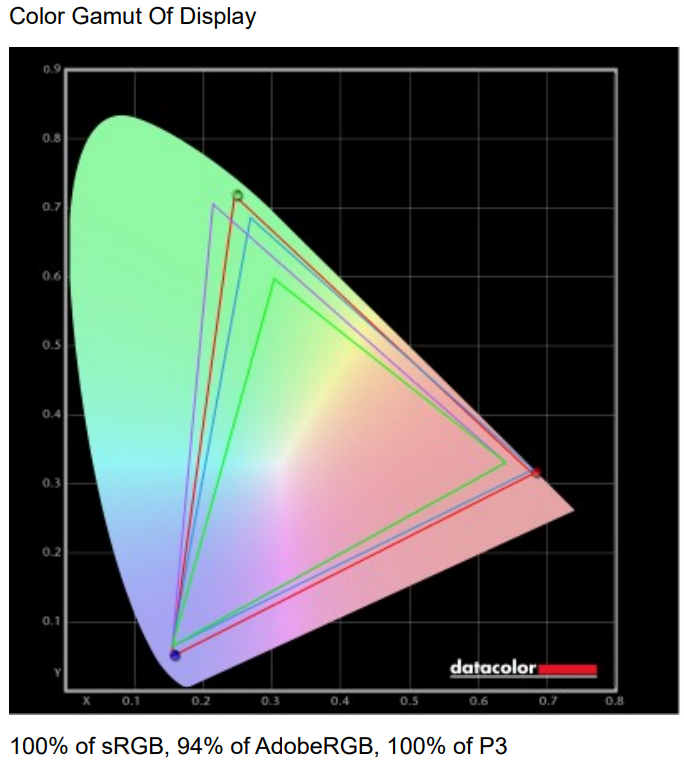
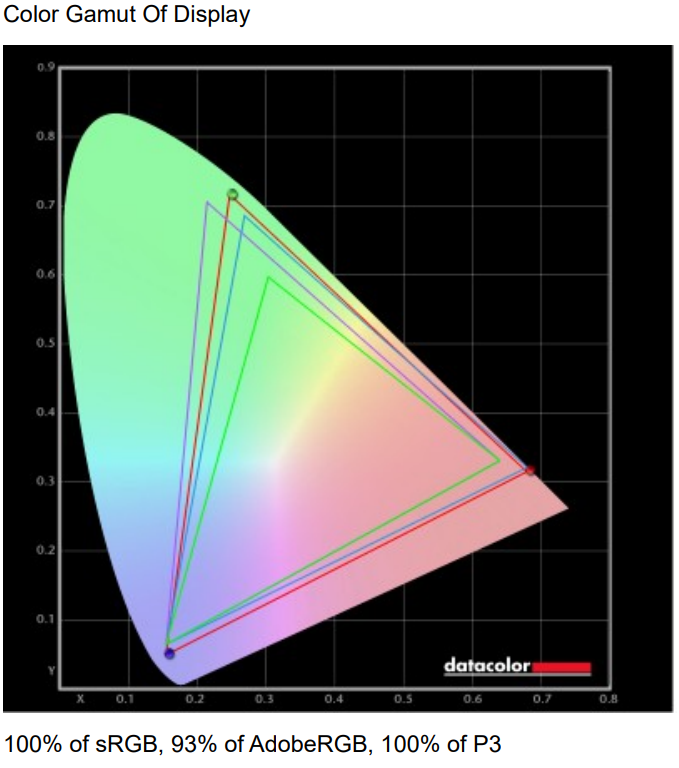
As seen in the two graphs above for SDR and HDR, it does manage to reach that 100% level in both DCI-P3 and sRGB. As for Adobe RGB, that doesn’t quite come to the same level, but still runs up to 94/93%, which is still quite high.
In terms of color-accuracy, the SDR range has an average deltaE of 1.24 and a max of 2.29 – this is well below the ideal 2.0 average score for color-accurate work, an impressive result. In HDR mode, it does stray further however, averaging at 3.9 deltaE with a max of 9.62, so we’d avoid this when doing color-accurate work.
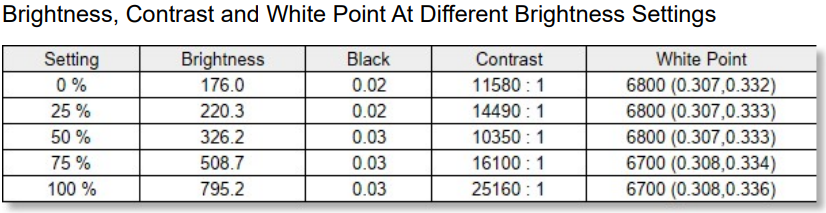
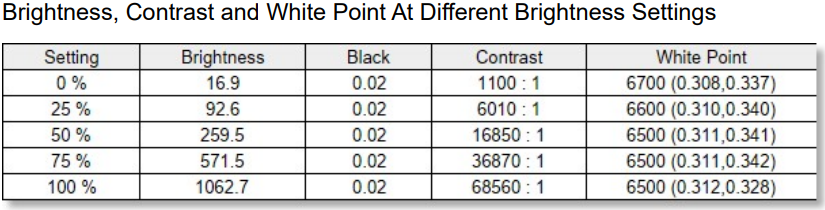
At least it does have a great white point of the ideal 6,500K, and the blacks are at 0.02/m², not quite reaching the zero of the ideal. With the contrast a lot better in HDR than the SDR.
HDR also provides a much better brightness range. With a low of just 17 candela, all the way beyond 1,060 candela, it does manage to reach its claim of 1,000 nits, even if the contrast doesn’t reach the claims from MSI. Below you can find the various brightness performances in both SDR and HDR.
Battery life
For our standardized battery life test, we turned off all the power-hungry features like RGB and performance modes, switched to integrated graphics within the onboard software, selected the eco mode power pre-set, and set to the brightness closest to 120 nits as possible (which is actually a quite high 176 nits on this laptop when in SDR mode). Wi-Fi remained on whilst Bluetooth was disabled.
Starting off with a two-hour HD video (muted for the sanity of the office), it dropped to 48% from full charge. After this we switched to a mixture of web browsing and document viewing, and it took an additional 2 hours 15 minutes for the battery to drain, meaning a total duration of 4 hours 15 minutes of battery life in our hybrid battery test.
For a 4K screen with an RTX 5090 and 285HX, it lasted for quite some time, to be fair to it. It’s obviously not the most efficient laptop for long battery life, but with all the economy settings enabled, it can be possible ot use it off the wall for a good amount of time.
Software
Much like with our previous MSI laptop reviews, there is a fair bit of software that comes preinstalled on the device. Some of it is useful, like MSI Center for power and fans, or SteelSeries for RGB lighting. But then there’s Norton antivirus that can be very intrusive a lot of the time with its pop-ups and blocking of apps (we recommend removing this).

MSI Titan 18 HX AI A2XWJG MSI Center hardware monitoring, Image by PC Guide

MSI Titan 18 HX AI A2XWJG MSI Center User scenario, Image by PC Guide
Within MSI Center, Live Update lets you keep your drivers up to date and security intact, and Hardware Monitoring lets you keep an eye on temps and usage. Under Features, ‘User Scenario’ allows you to switch between Exterme Performance, Balanced, and ECO Mode to determine the power and fan behaviors, and the GPU switch (a MUX Switch) lets you switch between Discrete, Integrated and MSHybrid modes according to your needs.
Performance and thermals
We put the laptop to the test, with a variety of games and software to give you an idea of its range of capabilities (with an RTX 5090 and 285HX, it should pass with flying colors).

MSI Titan 18 HX AI A2XWJG CS2, Image by PC Guide

MSI Titan 18 HX AI A2XWJG Cyberpunk 2077 1080p, Image by PC Guide

MSI Titan 18 HX AI A2XWJG Cyberpunk 2077 2400p, Image by PC Guide

MSI Titan 18 HX AI A2XWJG Doom Eternal, Image by PC Guide

MSI Titan 18 HX AI A2XWJG Geekbench AI, Image by PC Guide

MSI Titan 18 HX AI A2XWJG Geekbench, Image by PC Guide

MSI Titan 18 HX AI A2XWJG Blender, Image by PC Guide

MSI Titan 18 HX AI A2XWJG 3DMark, Image by PC Guide
Gaming benchmarks
Running the laptop in Extreme Performance mode to unlock its fans and power, I ran the suite of games in both native 2400p and 1080p resolution, along with three different settings presets. With the MUX switch on board, I tested both Discrete and MSHybrid GPU modes to see the differences that made on the performance of the laptop.
Starting with Cyberpunk 2077, at 2400p on Ultra settings, Discrete performance averages 61 fps, with MSHybrid mode achieving 57 fps. On Medium settings, it averages 152/136 frames per second (in Discrete/Hybrid modes), and on Low, it averages 172/158 fps. Enabling Ray Tracing, the Titan averages 42/40 fps on Overdrive settings, 62/58 fps on Medium, and 83/77 fps on Low.
At 1080p, on Ultra, the laptop averages 159/147 fps, Medium averages 178/162 fps, and Low averages 186/165 fps. With Ray Tracing enabled, you get 81/78 fps on Overdrive settings, 128/120 fps on Medium, and 169/147 fps on Low.
Next up: Counter-Strike 2. On 2400p at Very High settings, we recorded an average of 144/126 fps in Discrete/MSHybrid modes, respectively. 331/291 average fps was recorded on Medium settings, and 443/353 fps on Low. At 1080p, the laptop averages 334 and 359 fps at very high, 542 and 497 fps at medium, and 587 and 534 fps on low.
Lastly, we have Doom Eternal. At 2400p on Ultra Nightmare settings, the laptop averages 188/168 fps in Discrete/Hybrid modes, 192/175fps on High settings, and 218/189fps on Low. At 1080p, this goes up to 441/380 fps on Ultra Nightmare, 546/396 fps at Medium settings, and 564/468fps on Low.
Synthetic benchmarks
We run our usual range of synthetic tests, showcasing their rendering, AI, and general performance capabilities.
3DMark
| Benchmark | ROG Strix | Raider (Hybrid) | Raider (Discrete) | Acer | Titan (discrete) | Titan (hybrid) |
|---|---|---|---|---|---|---|
| Steel Nomad | 6,126 | 6,226 | 6,307 | 6,169 | 6,258 | 6,176 |
| Port Royal | 16,237 | 16,398 | 16,637 | 15,865 | 16,448 | 15,814 |
| Time Spy Extreme | 12,077 | 11,751 | 11,970 | 12,096 | 12,427 | 12,150 |
| Fire Strike Ultra | 13,910 | 16,432 | 16,752 | 15,749 | 16,853 | 16,644 |
Blender 4.5 – CPU
| Scene | ROG Strix | Raider (Hybrid) | Raider (Discrete) | Acer | Titan (discrete) | Titan (hybrid) |
|---|---|---|---|---|---|---|
| monster | 257.17 | 264.45 | 218.21 | 219.60 | 247.79 | 248.31 |
| junkshop | 181.89 | 179.41 | 136.85 | 142.99 | 163.21 | 162.95 |
| classroom | 138.93 | 138.90 | 108.71 | 110.73 | 122.56 | 122.31 |
Blender 4.5 – GPU
| Scene | ROG Strix | Raider (Hybrid) | Raider (Discrete) | Acer | Titan (discrete) | Titan (hybrid) |
|---|---|---|---|---|---|---|
| monster | 3,963.26 | 3,979.46 | 4,002.13 | 3,964.46 | 3,905.28 | 3,961.75 |
| junkshop | 2,099.47 | 2,175.51 | 2,110.99 | 2,210.26 | 2,096.72 | 2,191.45 |
| classroom | 2,016.39 | 2,029.87 | 1,998.61 | 2,039.66 | 1,993.69 | 2,054.77 |
Geekbench 6 – CPU
| Mode | ROG Strix Single | ROG Strix Multi | Raider Single | Raider Multi | Acer Single | Acer Multi | Titan Single | Titan Multi |
|---|---|---|---|---|---|---|---|---|
| Discrete | 2,819 | 17,794 | 3,163 | 20,156 | 2,843 | 17,208 | 3,064 | 22,067 |
| Hybrid | — | — | 3,110 | 18,858 | — | — | 3,107 | 21,691 |
Geekbench 6 – GPU (OpenCL & Vulkan)
| Mode | ROG Strix (OpenCL) | ROG Strix (Vulkan) | Raider (OpenCL) | Raider (Vulkan) | Acer (OpenCL) | Acer (Vulkan) | Titan (OpenCL) | Titan (Vulkan) |
|---|---|---|---|---|---|---|---|---|
| Discrete | 231,167 | 164,203 | 224,900 | 217,018 | 236,274 | 214,376 | 239,410 | 211,075 |
| Hybrid | — | — | 229,946 | 223,059 | — | — | 240,115 | 200,868 |
Geekbench 6 – AI (CPU)
| Mode | Single Precision | Half Precision | Quantized |
|---|---|---|---|
| ROG Strix | 4,422 | 1,878 | 8,035 |
| Raider Discrete | 6,423 | 2,657 | 11,880 |
| Raider Hybrid | 6,648 | 2,607 | 12,138 |
| Acer | 6,527 | 2,273 | 10,572 |
| Titan Discrete | 7,050 | 2,495 | 11,722 |
| Titan Hybrid | 7,351 | 2,658 | 12,346 |
Geekbench 6 – AI (GPU)
| Mode | Single Precision | Half Precision | Quantized |
|---|---|---|---|
| ROG Strix | 30,475 | 51,702 | 23,663 |
| Raider Discrete | 32,730 | 56,745 | 25,117 |
| Raider Hybrid | 33,092 | 57,268 | 25,303 |
| Acer | 30,193 | 50,473 | 23,572 |
| Titan Discrete | 32,504 | 56,226 | 24,886 |
| Titan Hybrid | 32,475 | 55,823 | 25,068 |
Thermals
Lastly, I loaded the laptop with Furmark 2, testing both the CPU and GPU to assess their cooling potential and power capabilities. Additionally, I tracked the temperature and clock rate using HWInfo and plotted the results below.
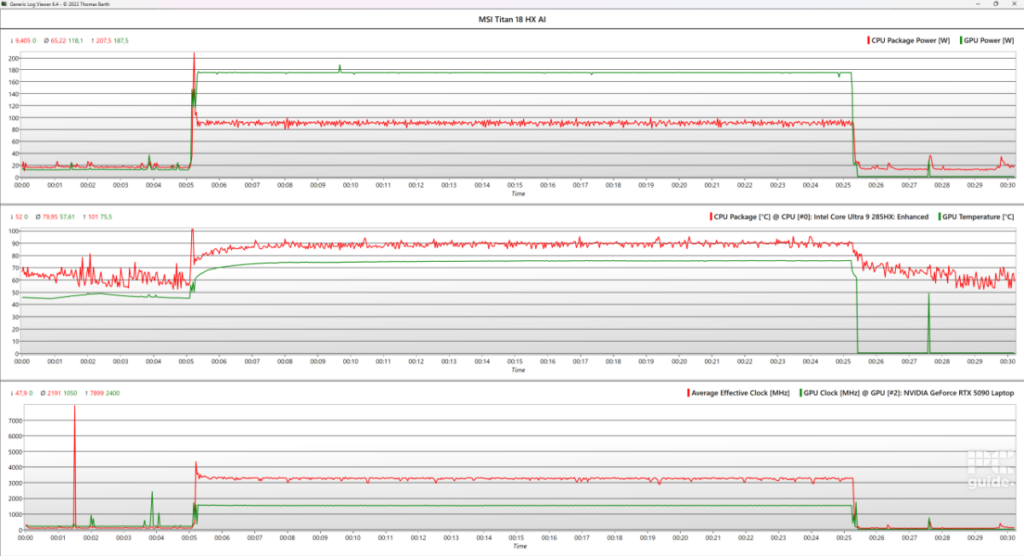
Spliting the data into three sections: a five-minute idle, a 20-minute load, and a five-minute cooldown, we get a good overview of the laptop’s behaviors.
Starting with 19W and 18W power on the CPU and GPU, they were both already quite warm even at just 50MHz, sitting at 60°C and 48°C respectively. That was without fans on though, so it’s likely residual heat.
During the load, the power spiked to around 90W on the CPU and 175W on the GPU – a combined total of 265W. During that time, the CPU levelled out at around 90°C, and the GPU at 75°C. The frequencies reached were 3.2GHz and 1.6GHz, respectively. To keep at that level, though, the fans did spin at a relatively high RPM and got quite loud – not to an intolerable level, but definitely less than ideal (we’d recommend headphones, plus not sitting next to anyone else you don’t want to annoy).
Turning off the load, the power dropped back down, as did the frequency, allowing the temperature to drop quickly. The GPU almost immediately went to zero, as the CPU took some time to get to where it was before, and the fans calmed down and quietened.
During this time, the palm rest and touchpad end of the laptop stayed cool. While the keyboard warmed up as it sits over the hot components, you can certainly feel it while typing. Beyond that and above the vents, it gets scalding and is certainly not advisable to touch.
- CPU: Intel Core Ultra 9 285HX
- GPU: NVIDIA GeForce RTX 5090
- Memory: 64GB DDR5-6400 (2x32GB)
- Storage: 2TB SSD
- Max Refresh Rate: 120Hz
- Resolution: 3840×2400
- Panel Type: 18″ MiniLED
Conclusion
The MSI Titan 18 HX AI brings top-level performance from its RTX 5090 and Intel Core Ultra 9 285HX combo. It has all the power you might want from a top gaming laptop, plus the high screen resolution, refresh rate, HDR performance, high max brightness, and color-accuracy make it an option for creative workloads.
The design and build quality are top-notch as you’d expect when paying this amount of money, and the keyboard is a highlight, feeling more like a good-quality mechanical desktop keyboard. The main negatives however are the inferior touchpad, mediocre speakers (though both of these can be worked around with a mouse and headphones), volume of the fans, high external temperature under heavy load, and above all the eye-watering price point. Ultimately the price makes it a harder recommendation for most people over other models like the MSI Raider or Acer Predator, even if they can’t match the Titan’s raw power.
Written by
